How To Use The Website
Step-by-step guides to common questions about products, downloads, subscriptions, billing, and using Today’s Racing Digest
Getting Started
Purchase & Download Products
- Browse products by track and race date
- Purchase Race Sheets, Complete Digest, and specialty handicapping tools
- Download your files instantly after purchase
- Manage subscriptions and renewals
- Use wallet credits for faster checkout
- Access past purchases anytime
Access Free Content
- View free daily picks (when available)
- Download free sample products
- Read race preview articles
- See Best Bets and featured plays
Improve Your Handicapping
- Track Horses to Watch
- Review track-specific Top 10 Angles
- Study tips and strategy content
- Compare product types to match your style
If you’re new, choose the option that best matches what you’re looking for:
I Want Today’s Picks
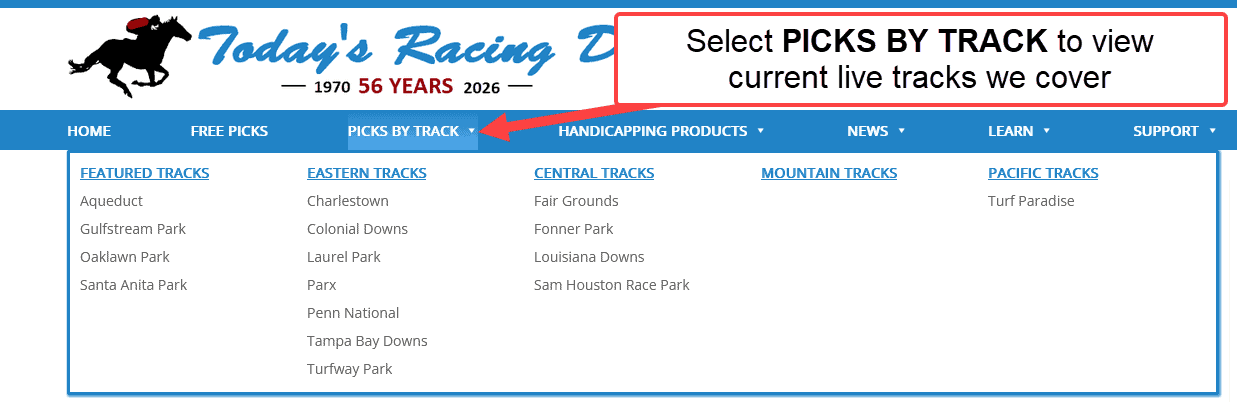
Click Picks by Track in the main menu and select your track. From there, choose your race date and view available products.
I Want Free Picks or Articles
Visit the track pages or handicapping product page to view available free picks, race previews, Best Bets, Horses to Watch, and track-specific Top 10 Angles.
I Want to Explore Products First
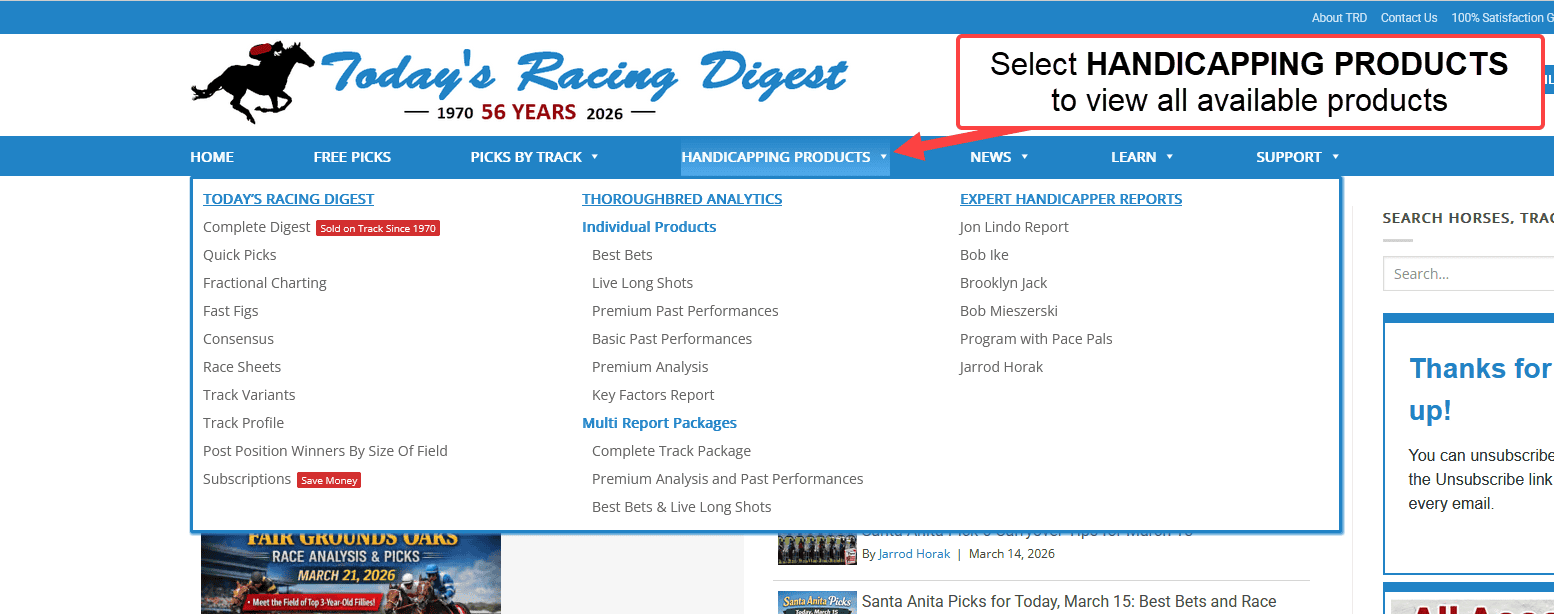
Click Handicapping Products to compare tools like Race Sheets, Complete Digest, Fast Figs, Fractional Charting, and more before purchasing.
I Want to Improve My Handicapping
Click Learn to browse strategy content, featured articles, track profiles, and educational tools to better understand how each product fits your style.
Most customers start with Picks by Track to access daily race products quickly.
Finding Products
3 Ways to Find Products (Track, Product Type, or Publisher)
Use the method that matches how you think. If you already know the track, start with Option 1. If you already know the product (Race Sheets, Fast Figs, etc.), use Option 2. If you want to browse everything from a publisher, use Option 3.
Option 1: Find Products by Track (Most Common)
If you know the track you want to play, this is the fastest way to see everything available for that track.
- Open the track menu: Click Picks by Track in the main navigation.
- Select your track: Choose the track from the dropdown menu. You’ll land on that track’s page.
- Go to the products section:
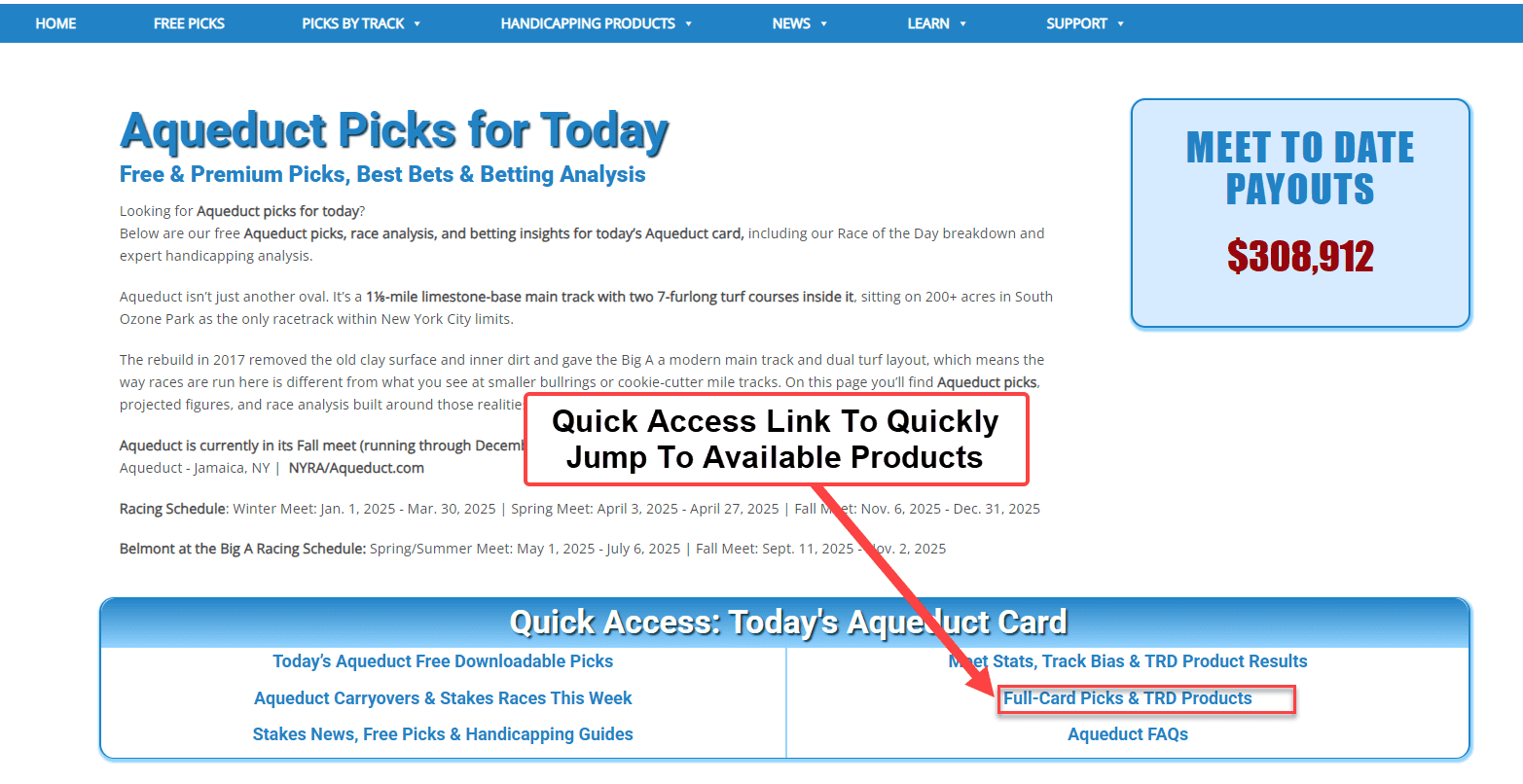
- On featured tracks, click the Full-Card Picks & TRD Products quick link near the top,
or
- Scroll down to the product section on the track page.
In the product section, you’ll see what’s available for that track, including:
- Today’s Racing Digest products
- Thoroughbred Analytics products
- Expert Handicapping products
- Select the race date: Choose the race date you want inside the product grid.
- Add to cart: Click the blue ADD SELECTED TO CART button (bottom right of the product grid).
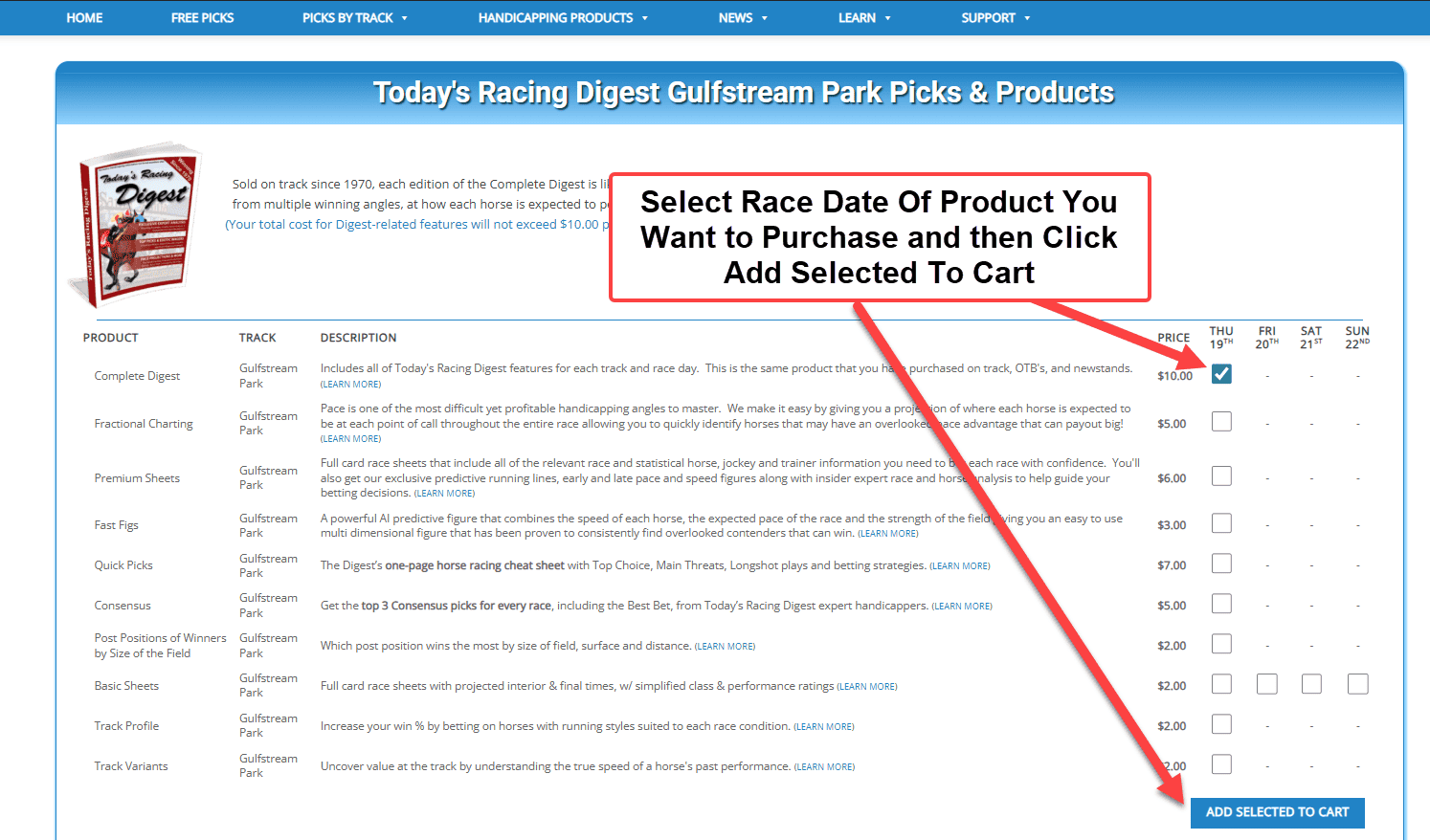
Tip: You can select multiple dates first, then click ADD SELECTED TO CART once.
Option 2: Find Products by Type (Race Sheets, Fast Figs, etc.)
If you already know which product you want, start from the product menu instead of the track menu.
- Open the product menu: Click Handicapping Products in the main navigation.
- Select the product: Choose the product from the dropdown menu.
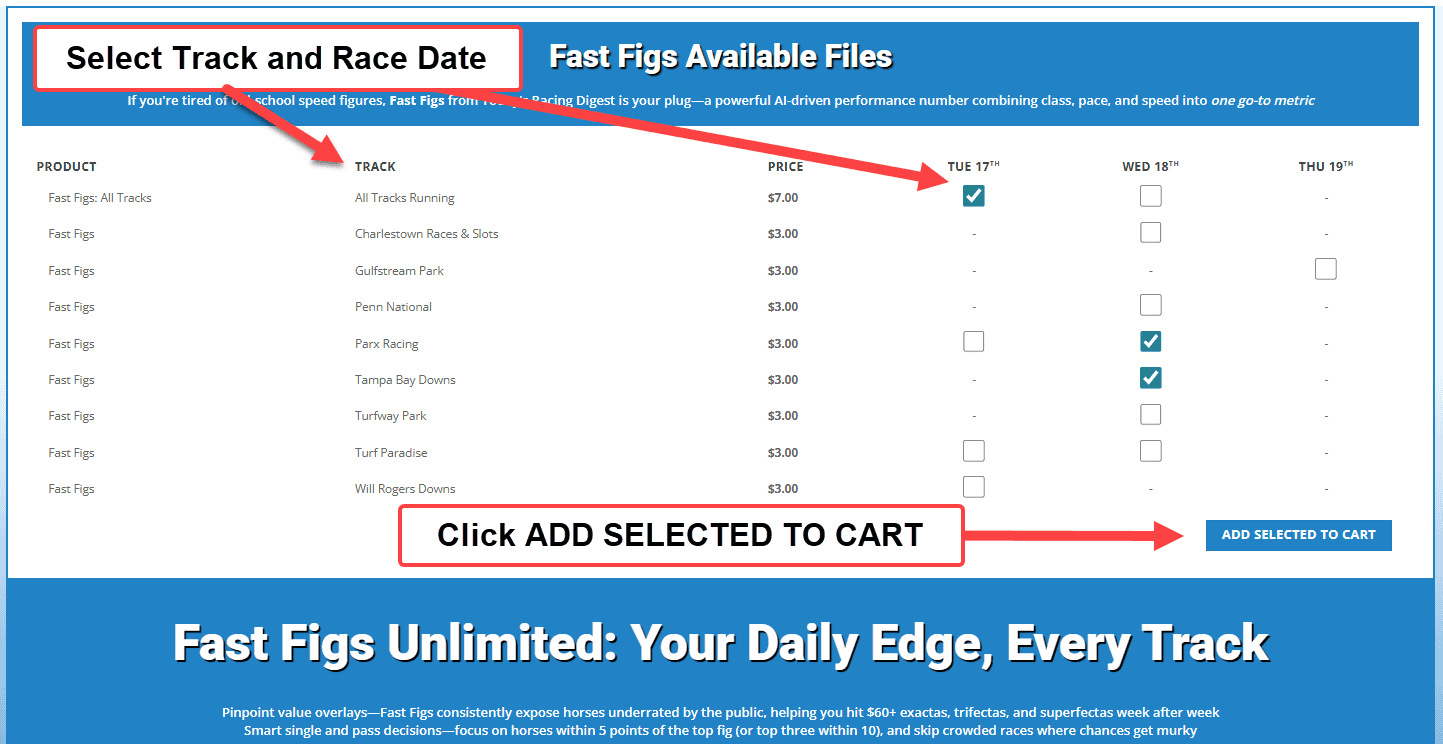
- Select track + date: At the top of the product page, use the grid to select:
- the track (or tracks), and
- the race date (or dates)
- Add to cart: Click the blue ADD SELECTED TO CART button.
Option 3: Browse by Publisher (TRD, Thoroughbred Analytics, or Expert)
If you want to browse everything from a specific publisher, use the homepage quick links.
- Start on the homepage: Use the quick links for:
- Expand the product you want: These pages list products in an accordion format. Click a product name to expand it.
- Select track + date: Choose the available track(s) and race date(s) shown for that product.
- Add to cart: Click ADD SELECTED TO CART.
How to Purchase Products (Step-by-Step)
This guide walks you through buying products on our site, even if you don’t purchase online very often.
Step 1: Start from the Track Pages
- From the top menu, click Picks by Track.
- Select the track you want.
Step 2: Choose the Correct Race Date
- On the track page, find the product grid.
- Select the race date you want (today’s card or a specific date listed).
Step 3: Pick the Product(s) You Want
- Check the box (or select the option) for the product(s) you want to buy.
- Double-check you selected the correct track and date before adding to cart.
Step 4: Add to Cart
- Click ADD SELECTED TO CART.
- You should see a confirmation that the item(s) were added. similar to this: 1 × “Your Selected Product” has been added to your cart.
Step 5: Review Your Cart
- Click the Cart icon (or View Cart button if shown).
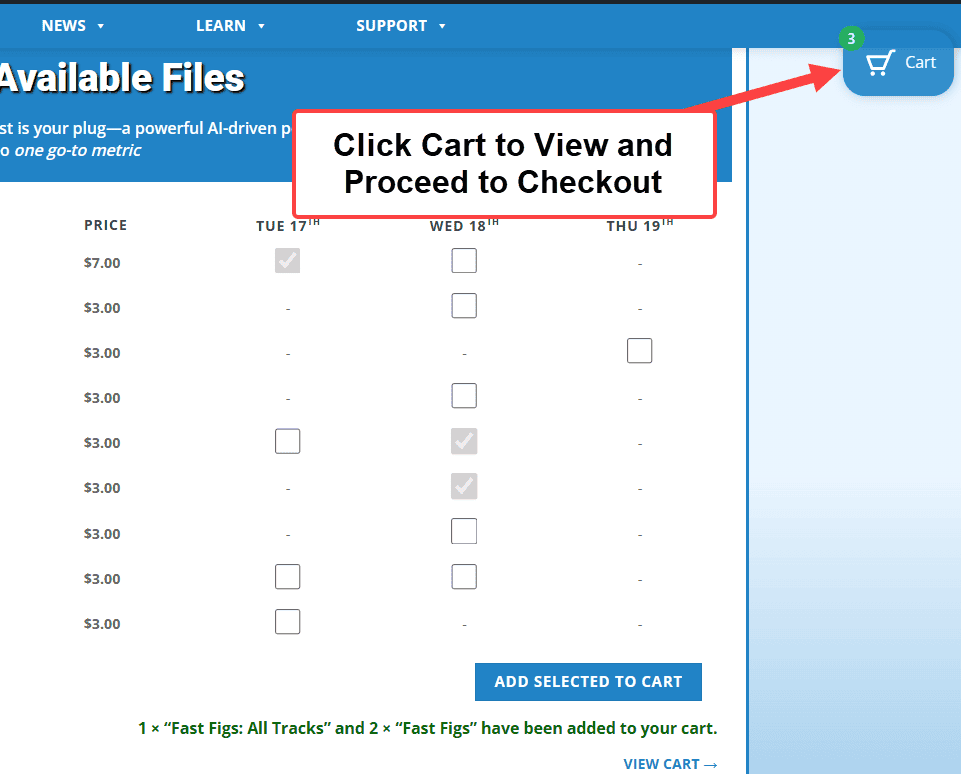
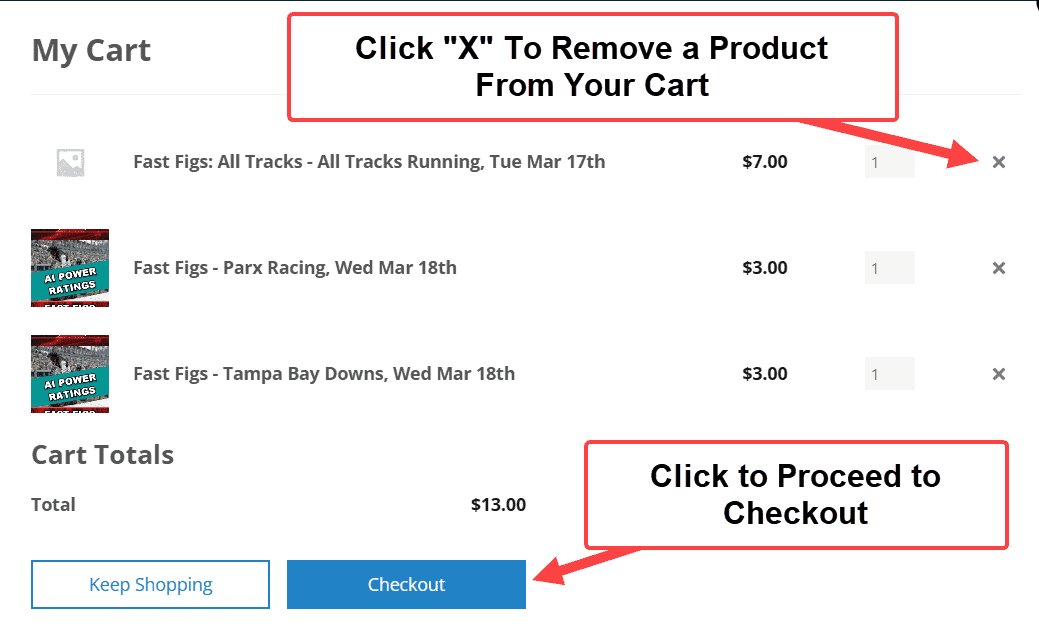
- Confirm the products in your cart match the track/date you intended to buy.
- If you need to remove something, use the remove/delete option in the cart.
Step 6: Checkout
- Click Checkout.
- Enter your billing details and payment information.
- Complete your order.
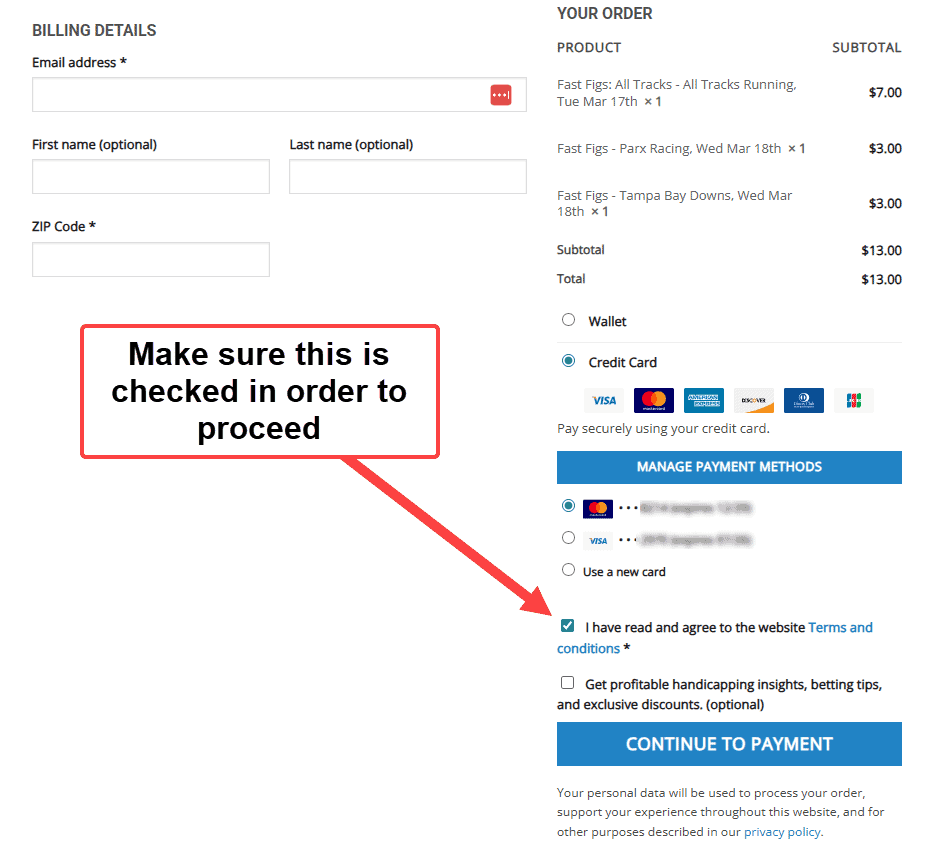
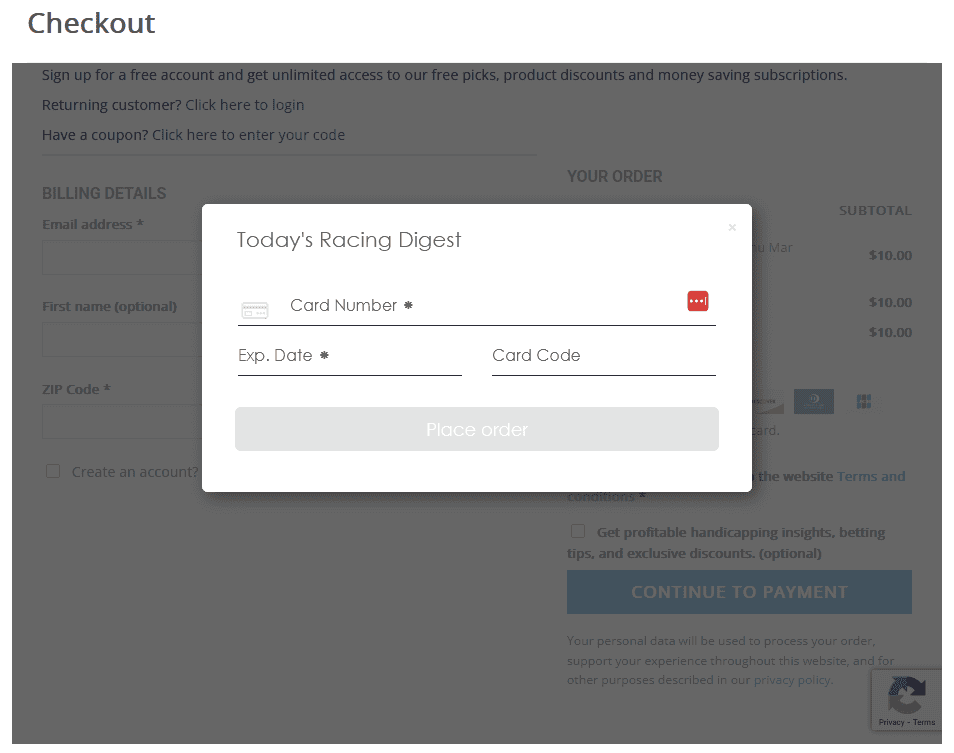
If you do not have a credit card saved on file select “Continue To Payment” to activate the pop up where you can enter in your credit card information.
Important Notes About Accounts
- Guest checkout is allowed for one-time purchases and free downloads.
- An account is required for subscriptions.
Step 7: Get Your Download After Purchase
- After checkout, you’ll see an order confirmation screen (do not close it until you confirm your download is available).
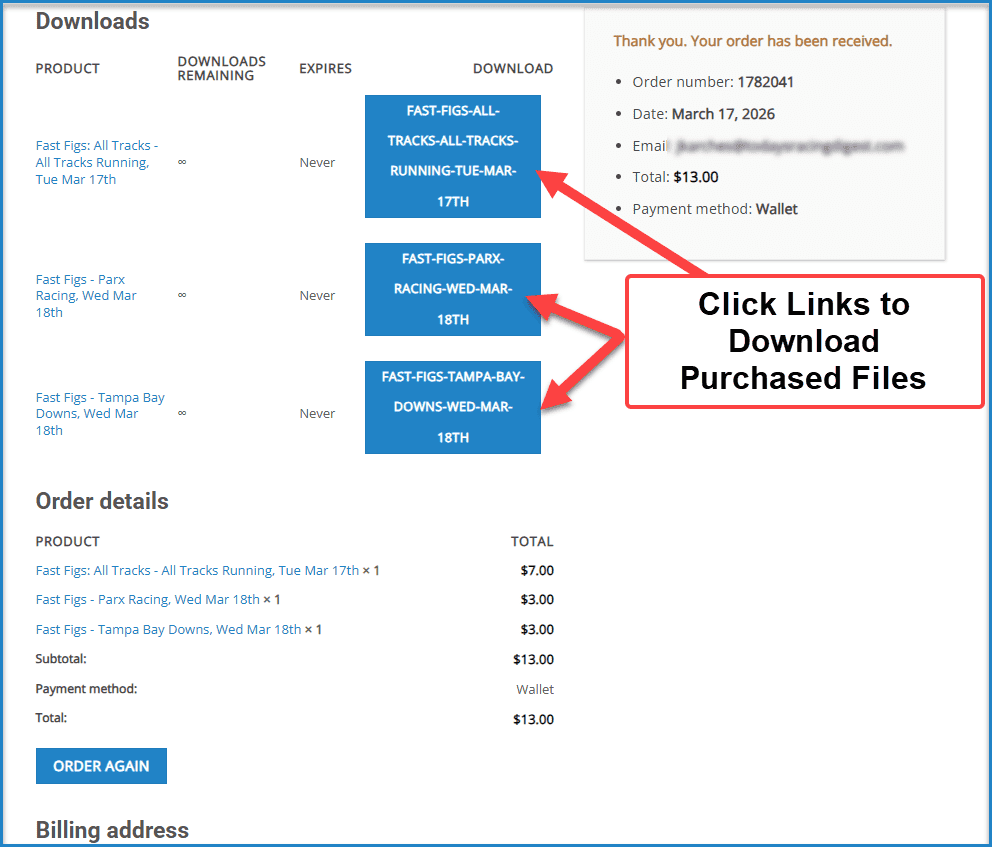
- You will also receive a receipt email with your order details.
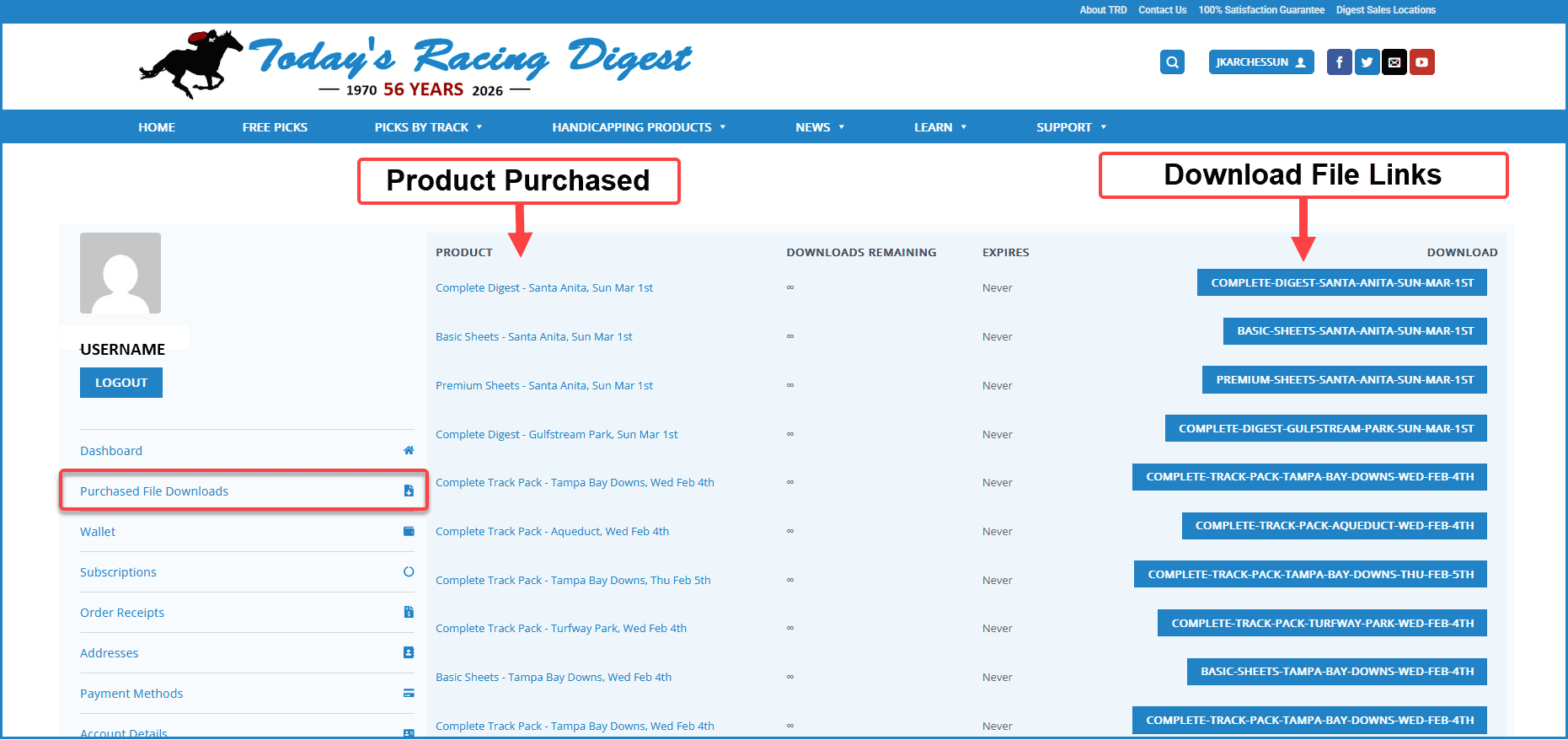
- If you have an account, you can always find your purchases under My Account → Downloads.
If You Need Help
If you get stuck at any step, contact support and include the track, race date, and the email address you used at checkout. We’ll help you complete the purchase.
The same Today’s Racing Digest product sold on track (and at retail locations like newsstands, OTBs, casinos, and sportsbooks) is the Complete Digest.
Important: The downloadable PDF is the same file we send to the printer. In other words, you’re getting the exact same Digest you would buy in person.
Fastest Way to Find It (Recommended)
The quickest way is to go directly through the main product menu (this avoids scrolling through a long track page).
- Click Handicapping Products in the main navigation.
- Under the Today’s Racing Digest column, click Complete Digest (it’s the first item listed).
- On the Complete Digest page, use the product grid to select:
- the track, and
- the race date
- Click the blue ADD SELECTED TO CART button.
- Complete checkout, then download your file from:
My Account → Downloads.
Alternate Way (From the Track Picks Page)
You can also find Complete Digest from a track’s picks page, but those pages include a lot of content and may require more scrolling.
- Click Picks by Track in the main navigation.
- Select your track from the dropdown.
- Scroll to the products section (or use the “Full-Card Picks & TRD Products” quick link when available).
- Find Complete Digest, select your date, and click ADD SELECTED TO CART.
If you don’t see Complete Digest listed for a specific track or date, it may not be offered for that card.
(Some tracks or dates may have limited coverage.)
Product posting times vary depending on the type of report and the level of analysis involved.
Products Posted As Soon As Entries Are Available
- Thoroughbred Analytics products
- TRD Basic Race Sheets
These products are typically available once official entries are posted and finalized.
Products Typically Posted 24–48 Hours Before Post Time
- Complete Digest
- Fractional Charting
- Fast Figs
- Consensus
- Quick Picks
- Track Variants
- Post Position Winners By Size Of Field
- Track Profile
These reports include deeper projections, analysis, commentary, and handicapping insights prepared by our team of professional handicappers.
Our general target is approximately 36 hours prior to post time. However, scheduling can vary based on:
- The number of tracks running on a given day
- The size and complexity of the race cards
- Major stakes days or feature race events
The Southern California edition is typically posted 2 days prior to post time due to our printing and delivery deadlines.
In some cases, you may see products posted the night before race day.
Expert Handicapper Tip Sheets
Expert tip sheets are typically available the evening before race day.
If you do not see a product listed yet, it may not have been posted.
Please check back later or refresh the page.
You can purchase products either as a guest or by creating an account.
Guest Checkout
- Available for one-time purchases and free downloads.
- No password or account setup required.
- Your download link appears on the confirmation page and in your receipt email.
- You cannot manage subscriptions or use wallet credits without an account.
Account
- Required for all subscriptions.
- Allows access to My Account → Downloads anytime.
- Lets you manage subscriptions and renewals.
- Enables wallet credits and faster checkout.
If you plan to subscribe or make repeat purchases, creating an account is recommended.
On Today’s Racing Digest, “race sheets” can refer to a few different products. The two main categories are:
- TRD Race Sheets (Projected Past Performances) — built to project how each horse fits today’s distance, surface, and class.
Available as Basic and Premium. - Thoroughbred Analytics Past Performances (Traditional Format) — more like what you’d see from DRF/Equibase/Bris style PPs.
Available as Basic and Premium.
Option A (Most Common): Find Today’s Race Sheets by Track
If you know the track you’re playing, this is the easiest way to see everything available for that track today.
- Click Picks by Track in the main navigation.
- Select your track from the dropdown menu.
- On the track page, scroll down to the product section (or use the “Full-Card Picks & TRD Products” quick link when available).
- Look for the race sheets or past performances you want (TRD or TA).
- Select the race date in the product grid.
- Click the blue ADD SELECTED TO CART button.
Tip: You can select multiple dates first, then click ADD SELECTED TO CART once.
Option B (Fastest): Find Today’s Race Sheets by Product Type
If you already know which type of race sheet you want (TRD Basic /Premium, or TA Past Performances Basic/Premium),
this is usually faster than scrolling a track page.
- Click Handicapping Products in the main navigation.
- Select the product you want from the dropdown.
- At the top of the product page, choose your track and race date.
- Click the blue ADD SELECTED TO CART button.
Quick Help: Which Race Sheet Should I Choose?
- Basic Race Sheets (TRD): Core race and horse info, projected performance tools, and clean ratings — available for all tracks.
- Premium Race Sheets (TRD): Includes everything in Basic plus deeper race analysis, projected speed, pace and running styles for each horse and horse comments from TRD analysts (available in select regions/days).
- TA Basic / Premium Past Performances: Traditional-format PPs with TA ratings and key factors (Premium adds deeper TA metrics).
If you want a quick, no-confusion starting point, choose Premium Race Sheets (TRD). If you prefer a traditional PP layout, choose TA Past Performances.
Yes. You can purchase multiple tracks and race dates in a single transaction.
How It Works
- On the track page or product page, select the track(s) and race date(s) you want.
- You can choose multiple combinations before adding them to your cart.
- Click the blue ADD SELECTED TO CART button.
- Complete checkout as usual.
This allows you to purchase coverage for multiple tracks or multiple race days at the same time.
No. We do not sell individual races separately.
When you purchase a Today’s Racing Digest product for a track and date, it typically includes the full race card for that day.
The only exceptions may be races that are not thoroughbred events (such as hurdles or other specialty race types), which may not be included in certain reports.
Important Clarification About Selective Products
Some products are designed to focus only on the strongest betting opportunities rather than covering every race:
- Thoroughbred Analytics Best Bets
- Thoroughbred Analytics Key Factors Reports
- Certain Expert Handicapper selections
These reports may highlight only select races identified as the best wagering opportunities across one or multiple tracks.
Our Satisfaction Commitment
If at any time you are not satisfied with one of our products, please email us at [email protected] and we will gladly review the situation and provide a refund if appropriate.
No. You can purchase and download products without creating an account.During checkout, you may choose to check out as a guest.
Benefits of Creating an Account
While an account is not required, it provides several advantages:
- Access to past purchases and downloads under My Account → Downloads
- Saved billing and personal information for faster checkout
- Access to special offers and promotional pricing
If you purchase regularly, having an account makes managing downloads and orders much easier.

Downloading Your Files
Downloading After Checkout
After completing checkout, you will be taken to a receipt (order confirmation) page.
On that page, you will see a link to your purchased file.
- Click the file link to open the PDF. The file will open in the same window.
- If you want the file to open in a new tab, right-click the file link and select Open link in new tab (wording may vary depending on your browser).
To return to the website: click the Today’s Racing Digest logo at the top of the receipt page.
You will also receive a receipt email with your order details.
Accessing Your Downloads Later
If you created an account, you can access your files at any time by:
- Logging into your account.
- Clicking My Account.
- Selecting Downloads.
Your purchased products will be listed there by race date.
If your file does not download:
- Check that pop-ups are not being blocked by your browser.
- Try refreshing the page and clicking again.
- Clear your browser cache and reload.
- Try a different browser or device.
If you checked out as a guest, use the download link provided on your order confirmation page or in your receipt email.
If you still cannot access your file, contact support at [email protected] with your username and we will assist you.
All products are delivered as downloadable PDF files.
After purchase, you will receive access to your file in two places:
- The receipt (order confirmation) page immediately after checkout.
- Your My Account → File Downloads section (if you created an account).
Clicking the file link will open the PDF in your browser. From there, you can view, save, or print the file.
Download links remain available inside your account for future access.
Opening and Saving PDF Files
When you click a download link, your browser may open the PDF in a preview window instead of automatically saving it.
To Save the File:
- Look for a Download icon in the PDF preview window and click it.
- Or right-click the file link and choose Save link as.
To Print the File:
- Use the Print icon in the PDF viewer.
- Or press Ctrl + P (Windows) or Command + P (Mac).
If the file does not open automatically, make sure your device has a PDF reader installed (such as Adobe Acrobat Reader).
Once your checkout is complete, your download links are available in three places:
1. Order Confirmation (Receipt) Page
Immediately after checkout, you will be taken to your receipt page.
Your download links will be displayed directly on that page.
2. Email Confirmation
You will receive a receipt email that includes your download links.
If you don’t see the email, check your spam or promotions folder.
3. Your Account (Recommended for Future Access)
If you created an account or logged in before purchasing:
- Log into your account.
- Click My Account.
- Select File Downloads
This section allows you to access and re-download your purchased files anytime.
If you checked out as a guest and need help retrieving your download,
contact support and we’ll assist you.
Troubleshooting Download & File Issues
What to Do If a PDF Will Not Open
- Download the file to your device instead of opening it in the browser preview.
- Locate the downloaded file in your Downloads folder.
- Right-click the file and choose Open With.
- Select a PDF reader such as Adobe Acrobat Reader.
If the file appears blank or gives an error:
- Update your PDF reader to the latest version here.
- Clear your browser cache and download again.
- Try a different browser.
- Restart your device and attempt the download again.
If the problem continues, contact support and include your order number and the device/browser you’re using.
What to Do If Your Download Link Has Expired
- Log into your account.
- Click My Account in the top menu.
- Select Downloads.
- Locate your product by race date.
- Click the product name to download the file again.
If you checked out as a guest:
- Return to your order confirmation email.
- Use the original download link provided.
- If that link no longer works, contact support with your order number.
If you cannot access your purchase after logging in, contact support and include your order number and the email address or username used at checkout.
What to Do If You Did Not Receive Your Receipt Email
- Check your Spam or Junk folder.
- Search your inbox using our company name.
- Confirm the email address you entered at checkout was correct.
If you created an account:
- Log into your account.
- Click My Account.
- Select Downloads to access your purchased files.
If you checked out as a guest:
- Locate your order confirmation page if it is still open in your browser.
- If you cannot access it, contact support and provide your name, email address used at checkout, and approximate purchase time.
We can resend your receipt and download access once your order is verified.
What to Do If the Site Says You Already Purchased a Product
- Log into your account using the email address used for the purchase.
- Click My Account in the top menu.
- Select Downloads.
- Locate the product by race date and click to download.
If you may have used a different email address:
- Try logging in with any alternate email addresses you use.
- Check your email inbox for the original receipt to confirm which email was used.
If you checked out as a guest:
- Use the download link from your order confirmation email.
- If you cannot find it, contact support and provide your user name, email address, and approximate purchase time.
If you are still unable to access your purchase, contact support and we will assist you.
For Thoroughbred Analytics products:
These products are generated on demand at the time of purchase. A temporary placeholder file may appear while the system builds your custom report. This process can take up to one minute.
- Wait approximately 60 seconds.
- Return to My Account → Downloads.
- Download the file again.
If the file is still blank:
- Refresh the page and download again.
- Make sure you open the file using a PDF reader.
- Try a different browser.
If the file remains blank after retrying, contact support with your order number and we will correct the issue.
What to Do If You Received the Wrong File
- Log into your account.
- Go to My Account → Downloads.
- Confirm the track and race date of the product you selected.
- Download the file again to ensure the correct version loads.
If the file still does not match your intended purchase:
- Contact support.
- Include your order number.
- Specify the correct track and race date.
- If possible, attach a screenshot of the incorrect file.
We will review the issue and provide the correct file promptly.
Thoroughbred Analytics reports are generated on demand after your purchase is completed.
Unlike static PDF files, these reports are created automatically when you place your order.
This production process typically takes up to one minute.
Why Am I Seeing a Placeholder PDF?
While the report is being generated, you may see a placeholder PDF file.
This simply means the system is still creating your personalized report.
What Should I Do?
- Wait approximately 30–60 seconds.
- Refresh the page, or
- Click the download link again.
Once production is complete, the correct Thoroughbred Analytics file will appear.
If the File Still Doesn’t Appear
If after several minutes the report has not generated properly,
please contact us at [email protected].
We will either:
- Provide the file directly, or
- Issue a refund if there is a technical issue preventing production.
We’re happy to assist and will resolve the issue promptly.
If you completed checkout but cannot access your product, it is usually due to one of the following reasons:
1. You Are Not Logged Into the Correct Account
Make sure you are logged into the same account used during checkout.
After logging in, go to:
My Account → Downloads
2. The Order Is Still Processing
Payment confirmation may take a moment to process.
You can verify the order status under:
My Account → Orders
3. You Checked Out as a Guest
If you did not create an account, your download link will appear:
- On the order confirmation (receipt) page
- In your confirmation email
If you do not see the email, check your spam or promotions folder.
4. Thoroughbred Analytics Products Are Generated On Demand
Thoroughbred Analytics reports are produced automatically after purchase.
This process can take up to one minute.
While the file is being generated, you may see a placeholder PDF.
If this happens:
- Refresh the page, or
- Click the download link again
Once the report has finished generating, the correct file will appear.
Still Not Showing?
If after several minutes the Thoroughbred Analytics product has not appeared,
please contact us at [email protected].
We will either:
- Provide the file directly, or
- Issue a refund if there is a production issue.
We are happy to help and will resolve it promptly.
Using the Site on Mobile Devices
Downloading on iPhone (Safari)
- Tap the product download link.
- The PDF may open in a preview screen.
- Tap the Share icon (square with an arrow).
- Select Save to Files.
- Choose a folder (such as “On My iPhone” or iCloud Drive) and tap Save.
You can later access the file in the Files app under the folder you selected.
Downloading on Android (Chrome)
- Tap the product download link.
- The file will usually download automatically.
- Open your Files app or Downloads folder.
- Tap the PDF to open it.
If the file opens inside Chrome instead of saving, tap the three-dot menu and choose Download.
Where Did My File Go?
Mobile devices often open PDFs in a preview instead of automatically saving them.
- iPhone: Open the Files app and check the Downloads folder or the folder you selected when saving.
- Android: Open the Files or Downloads app.
If you cannot find the file, return to My Account → Downloads and download it again.
File Opens But Won’t Save
- Use the browser menu and select Download instead of viewing in preview.
- Open the file using a PDF app such as Adobe Acrobat Reader.
- Make sure your device has available storage space.
Thoroughbred Analytics Files (On-Demand Generation)
Thoroughbred Analytics products are generated on demand after purchase.
A temporary placeholder file may appear while your report is being created. This can take up to one minute.
- Wait approximately 60 seconds.
- Return to My Account → Downloads.
- Download the file again.
If the file is still blank after waiting and re-downloading, contact support.
Mobile Tips & Best Practices
- Use the latest version of Safari or Chrome.
- Ensure your internet connection is stable before downloading.
- Download files before arriving at the track if possible.
- If a file appears blank, refresh and download again.
Basic Troubleshooting
Clear Your Browser Cache
Sometimes your browser stores an older version of a page.
Clearing your cache forces your browser to load the latest version of the site.
- On desktop: Open your browser settings and clear browsing data (select “Cached images and files”).
- On mobile: Open your browser settings and clear browsing data.
After clearing cache, close your browser completely and reopen it before returning to the site.
Enable Pop-Ups
Some downloads or checkout functions may open in a new window.
If pop-ups are blocked, the page may appear to do nothing when you click.
- Check your browser’s pop-up settings.
- Allow pop-ups for this website.
- Refresh the page and try again.
Disable Ad Blockers or Privacy Extensions
Some browser extensions can interfere with login, checkout, or downloads.
- Temporarily disable ad blockers for this site.
- Refresh the page and try again.
Supported Browsers
For best performance, use the latest version of:
- Google Chrome
- Safari
- Microsoft Edge
- Firefox
Older browsers or outdated versions may cause login or download issues.
What to Do If a Page Will Not Load
- Refresh the page and wait 10–15 seconds.
- Try an incognito/private window and load the same page again.
- Try a different browser (Chrome or Safari recommended).
- Disable ad blockers / privacy extensions for our site, then reload.
- Clear your browser cache and try again.
- Try a different device or network (for example, switch from Wi-Fi to cellular).
If you are trying to access downloads or subscription content:
- Log out, then log back in.
- Go to My Account and try again from there.
If the page still won’t load, contact support and include:
- The page URL (copy/paste if possible)
- Your device (desktop/mobile) and browser
- Any error message you see
Have more questions?
Still have a question? We’re here to help.
Send us a message below and include your account email, track, and race date (if applicable) so we can respond quickly.