
Account Help
Step-by-step guides to common questions about account support such as subscriptions, billing, and using Today’s Racing Digest account features.
Login & Access
If you forgot your password, you can reset it from the login page.
- Click My Account at the top of the website.
- On the login page, click Lost your password?
- Enter the username or email address associated with your account.
- Check your email and follow the reset link.
If you do not receive the reset email, check your spam or junk folder.
If you no longer have access to your email or still cannot log in, see Account Help or contact support.
You can log into your account using either the account username or the email address associated with that account.
If You Can Log Into Your Account:
- Go to My Account.
- Select Account Details
- Your Username is locate on the top left side of the My Account Page.
Note: You cannot change your Username for your account but you can change the Display Name by entering it in the Display Name box on this page.
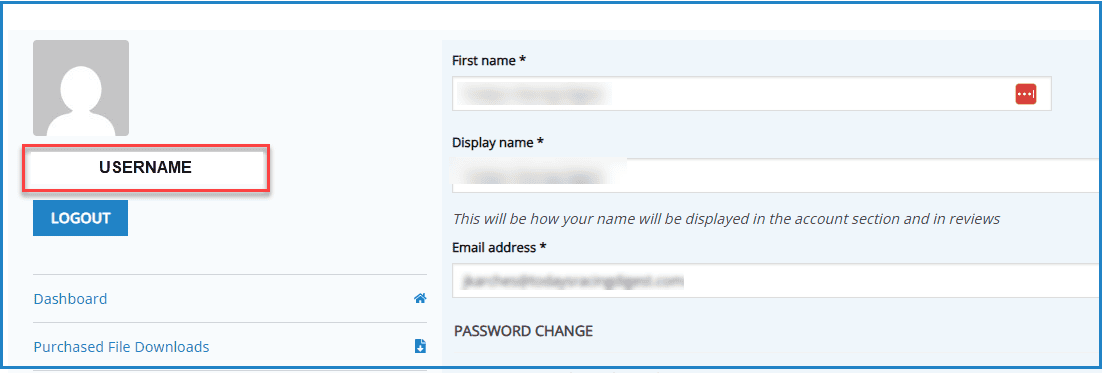
The Email Address associated with your account is located in the middle of the Account Details page.
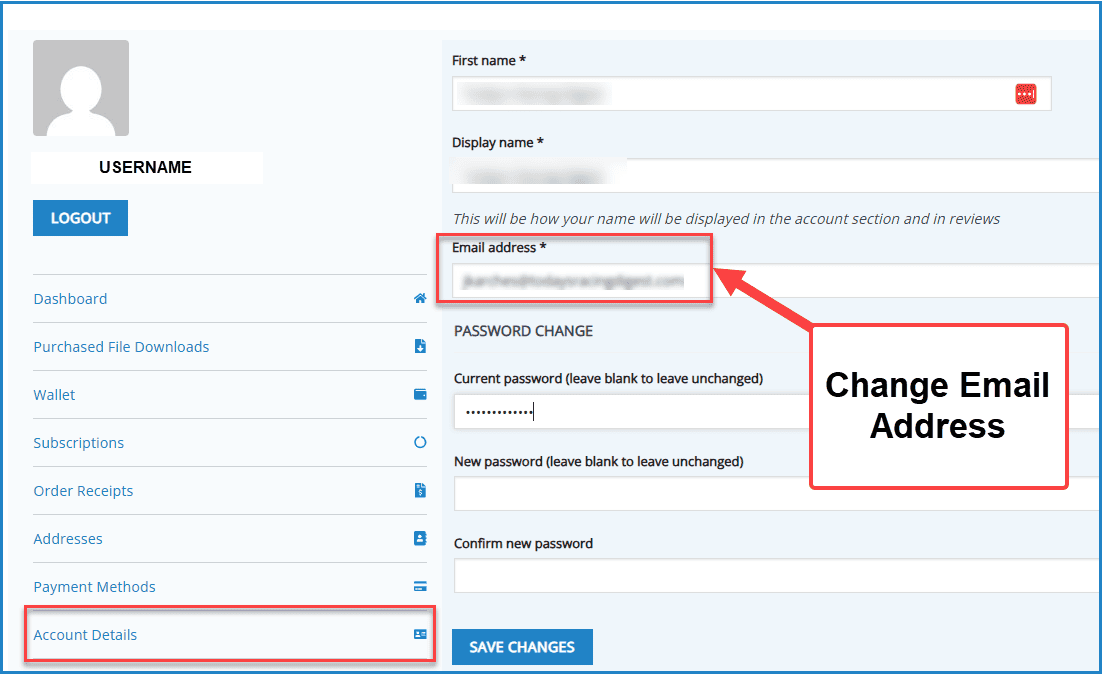
Change Email Address
Enter your new email address into the Email Address area and click the blue Save Changes button at the bottom.
If You Cannot Log Into Your Account:
Your username is typically the email address you used when creating your account.
If You’re Not Sure Which Email You Used:
- Search your inbox for past order receipts from Today’s Racing Digest.
- Check any email accounts you commonly use for online purchases.
If You Still Cannot Locate Your Account:
Email support and include:
- Your full name
- Any possible email addresses you may have used
- Approximate purchase dates (if known)
We will help locate your account and confirm the correct username and login email.
Resetting Your Password
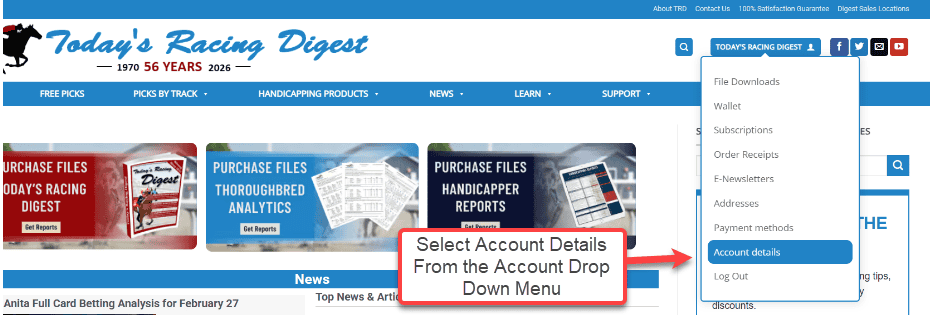
Step 1: Go to My Account in the top menu
Step 2: Select Account Details from the drop down menu
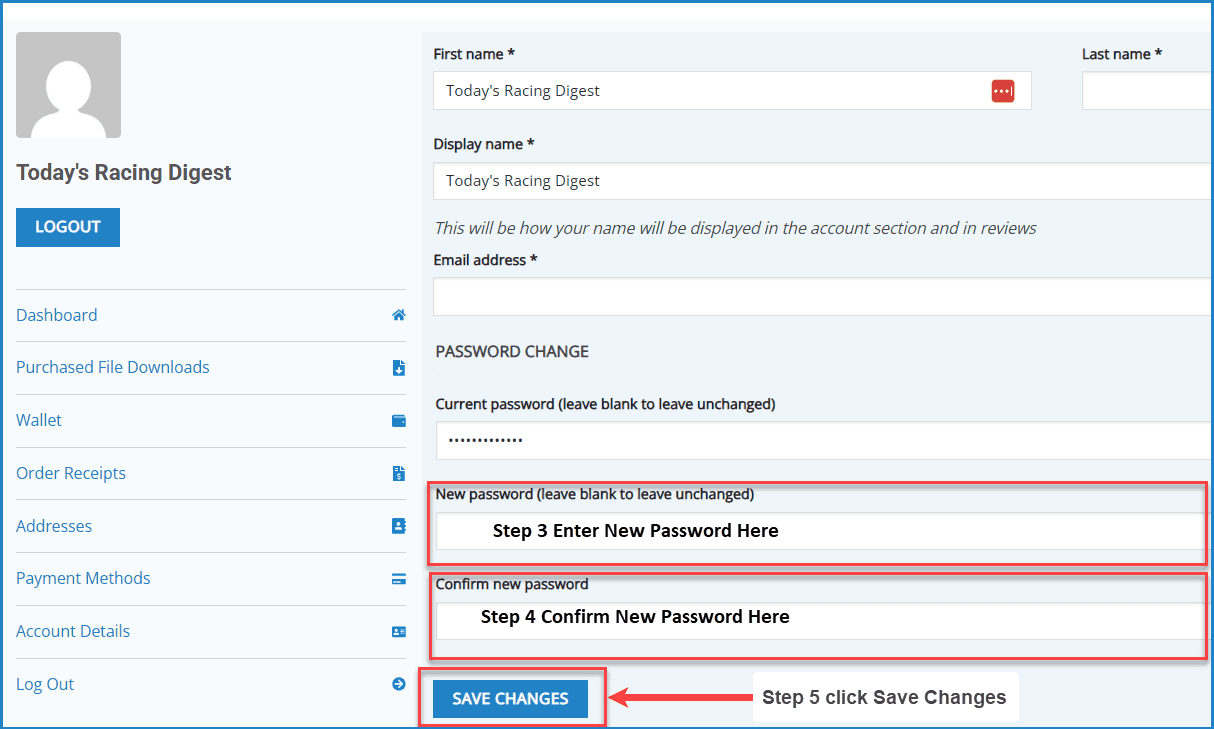
Step 3: At the bottom of that page where it says “New password” type in your new password
Step 4: Just below that where it says “Confirm new password” type that same new password
Step 5: click “Save Changes”
Your account dashboard allows you to manage purchases, downloads, subscriptions, wallet credits, and your personal account details in one place.
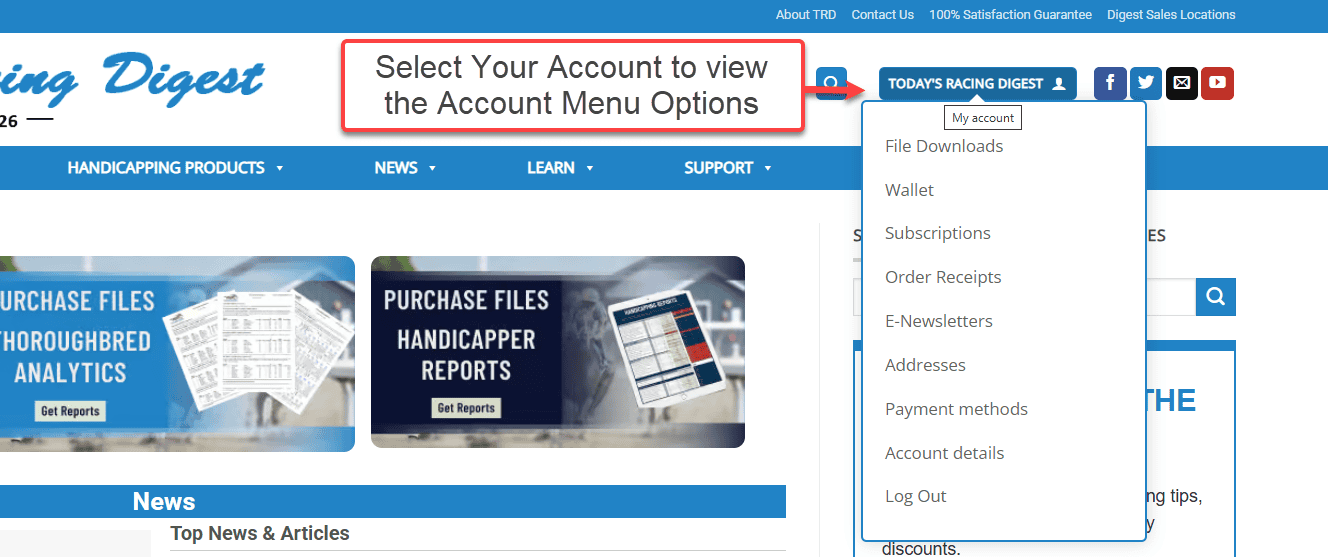
To access your dashboard, log into your account and then select My Account in the top menu to to see your account options.
You can either double-click the My Account button to go directly to your main account page, or hover your mouse over My Account to open a quick drop-down menu with additional account options.
Logging Out
To log out of your account:
- Go to My Account.
- Click Log Out.
If You Cannot Access Your Account
- Use the Lost your password? link on the login page.
- Check your email for reset instructions.
- If you no longer have access to your email, contact support.
If you need assistance at any time, contact support and include the email address associated with your account.
You can update your email address from your account dashboard.
- Go to My Account.
- Select Account Details
- Enter your new email address into the Email Address area and click the blue Save Changes button at the bottom.
If You Cannot Log In
If you no longer have access to your account or email address, contact support and include:
- Your full name
- The old email address (if known)
- The new email address you would like to use
We will verify your account and assist you.
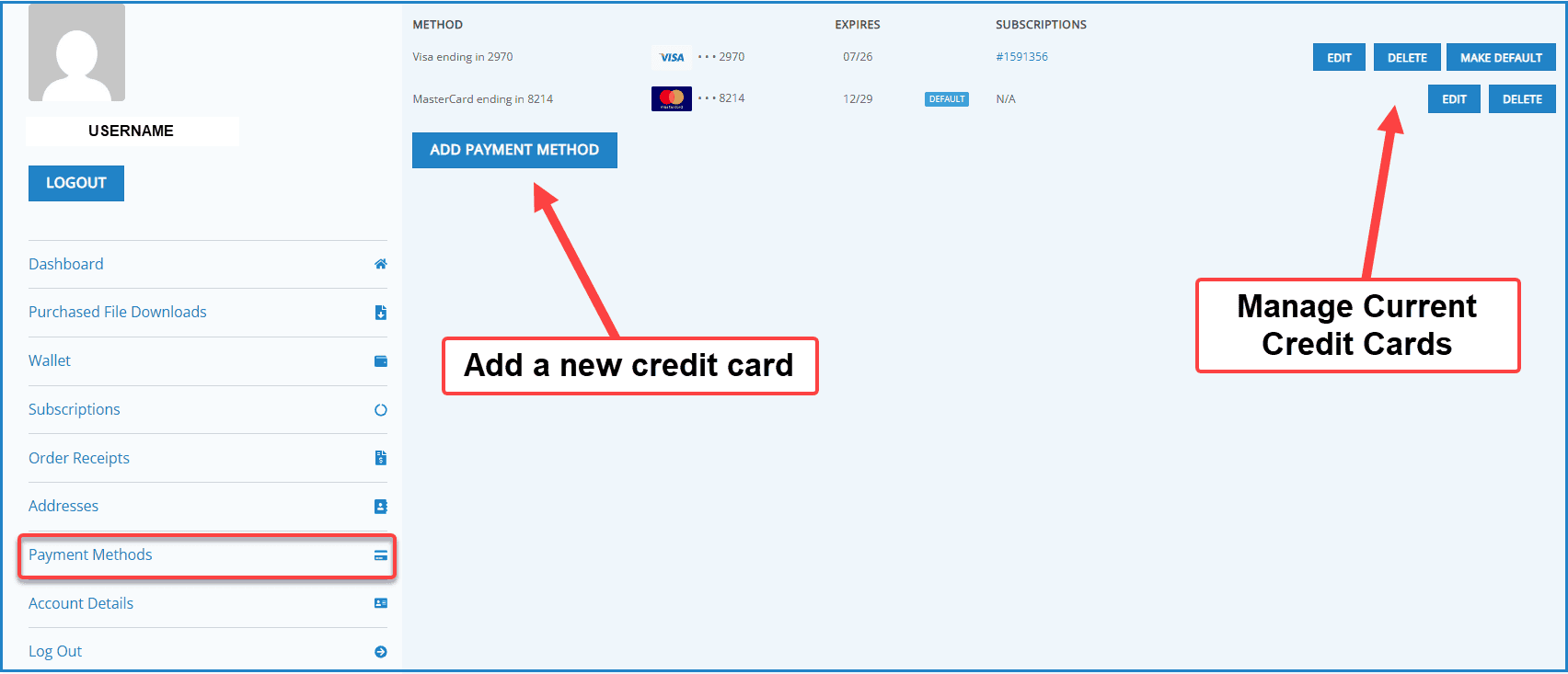
How to Update Your Payment Method
- Log into your account.
- Click My Account.
- Select Payment Methods.
- Add a new card, delete a card or update your existing card details.
- Save changes.
If you are updating a card for a subscription:
- Make sure the new payment method is saved.
- Confirm it is assigned to your active subscription.
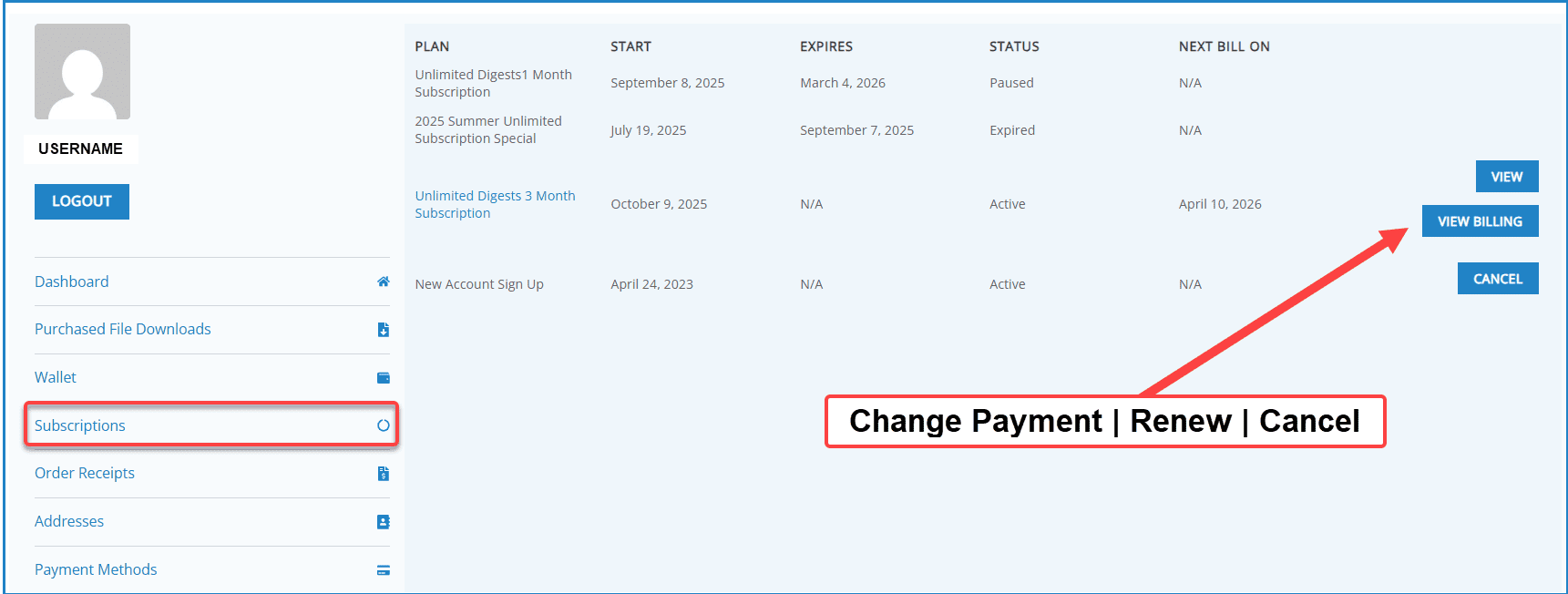
- Go to My Account.
- Select Subscriptions.
- Click View Billing Next to the subscription you want to update the payment option for.
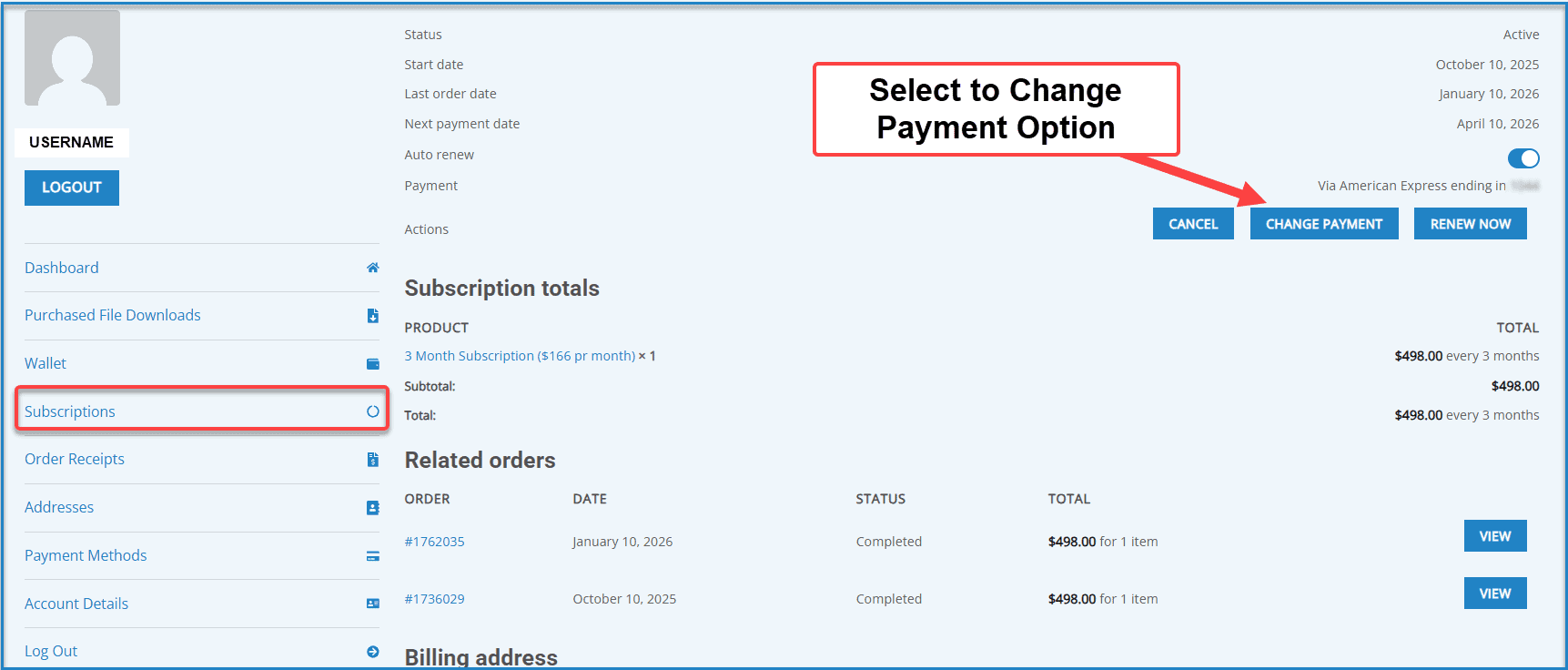
From the Subscriptions “View Billing” Page Select Change Payment Option
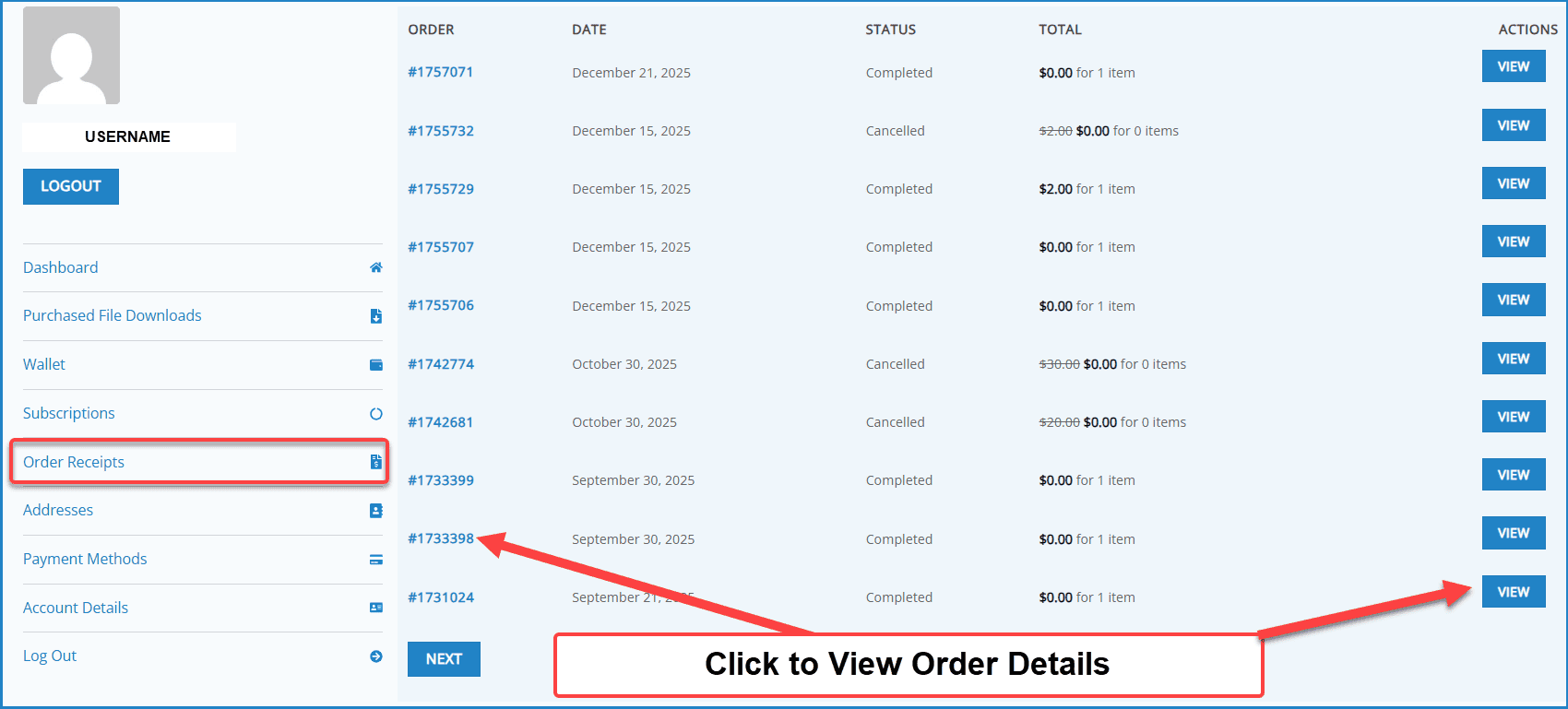
How to View or Download Receipts
- Log into your account.
- Click My Account.
- Select Order Receipts.
- Click View next to any order.
You can review order details and download invoice information from this section.
We recommend maintaining one account per customer.
Multiple accounts can create confusion with:
- Subscriptions and renewals
- Wallet credits
- Download history
- Order records
If you believe you have created more than one account, contact support and include the email addresses used so we can help review or clarify your records.
Account Security Tips
- Keep your password secure and do not share your login credentials.
- Use a unique password for your account.
- If you notice unfamiliar activity, contact support immediately.
If you suspect unauthorized access, reset your password using the Lost your password? link on the login page or on your Account Details page.
How to Request Account Deletion
If you would like your account removed:
- Contact Support from the email address associated with your account.
- Include your full name and request account deletion.
Please note:
- Active subscriptions must be canceled first.
- Wallet balances should be refunded or used before deletion.
We will confirm once your account has been processed.
Orders & Downloads
Purchasing and downloading products is simple. Follow the steps below:
Step 1: Find Your Products
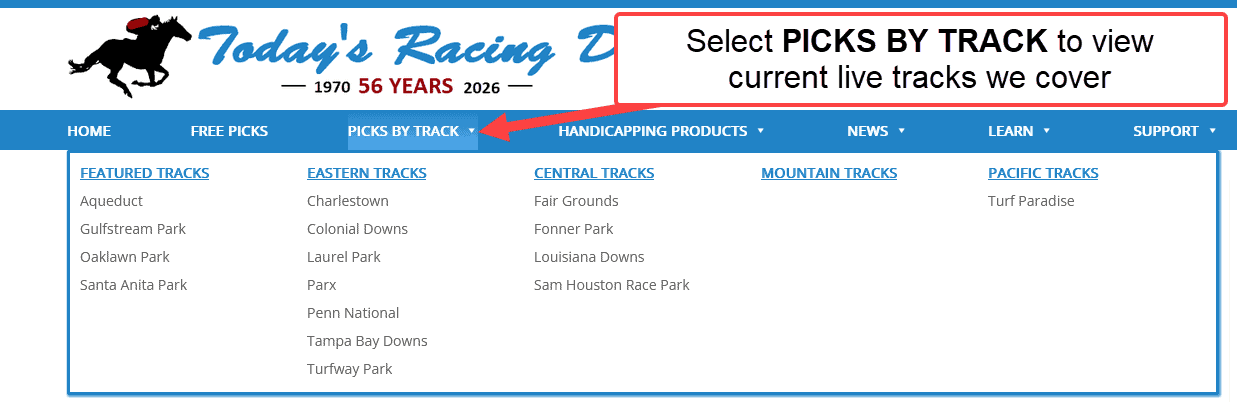
Option 1: Picks by Track (Most Common)
- Click Picks by Track in the main menu.
- Select the racetrack you’re interested in.
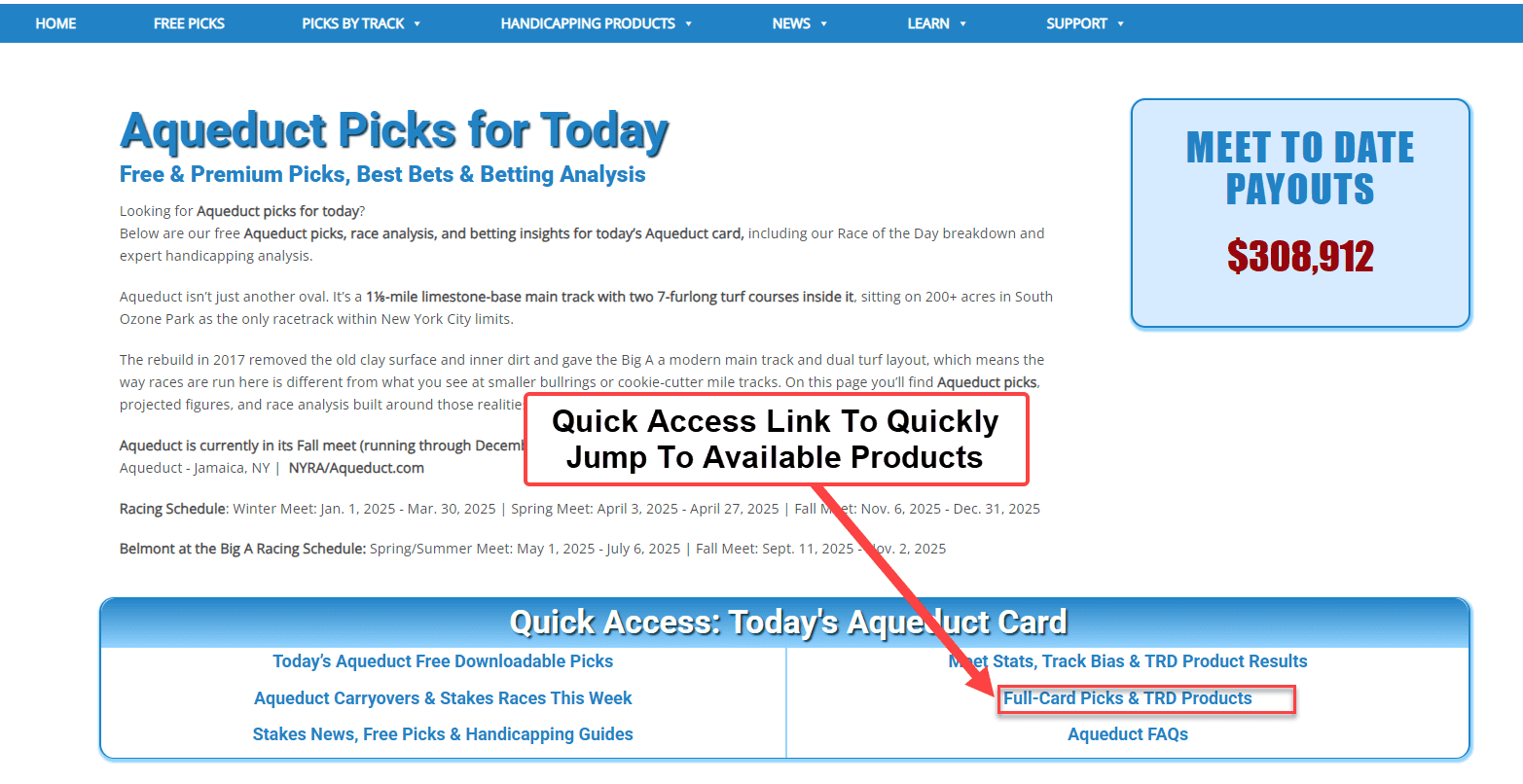
3. On the track page, scroll down to the product sections:
-
- Today’s Racing Digest products
- Thoroughbred Analytics products
- Expert Handicapper Tip Sheets
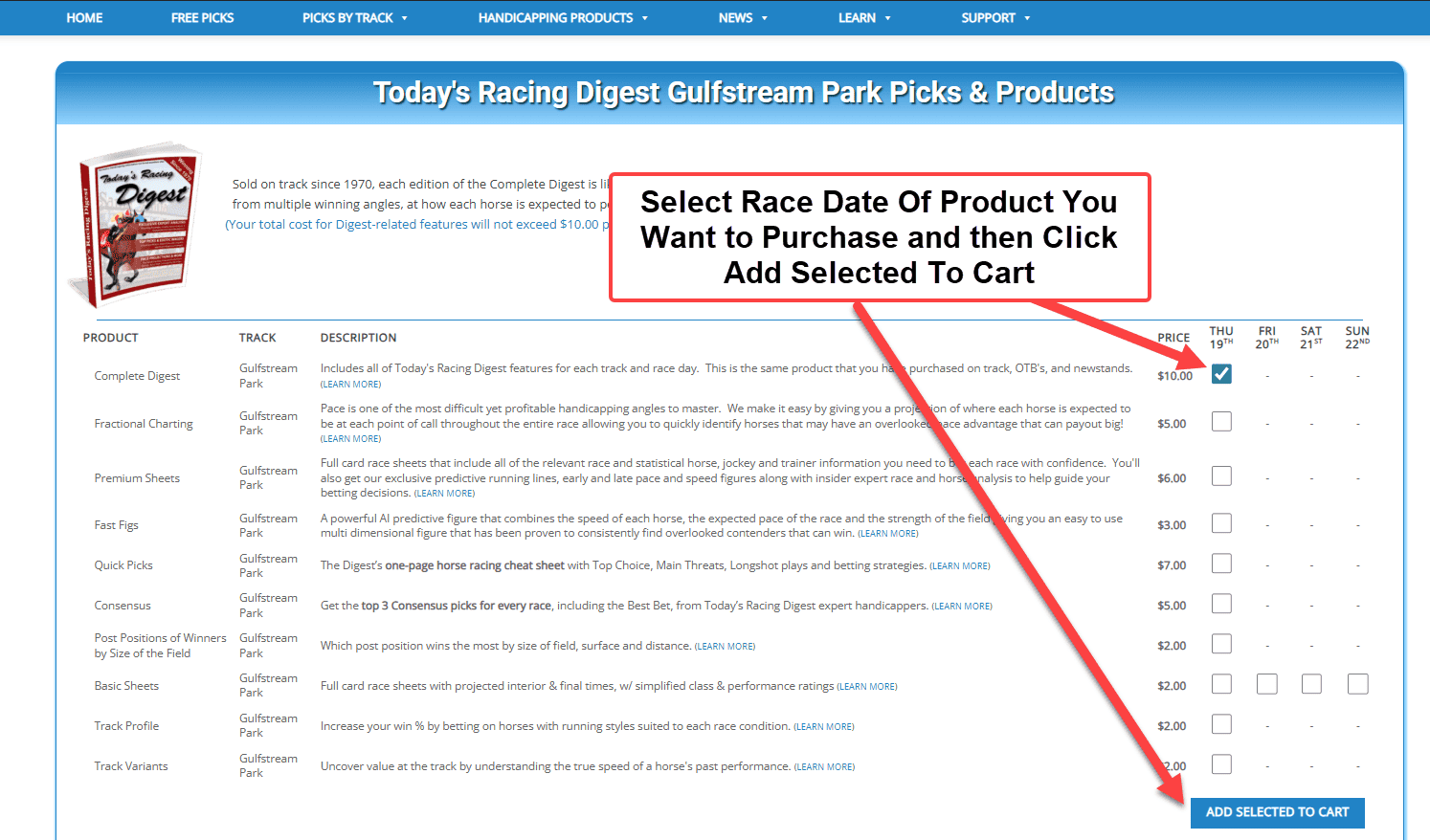
You can also use the Full-Card Picks & TRD Products quick access links at the top of the page to jump directly to the product grids.
- From product grids select the product and race date you want.
- Click ADD SELECTED TO CART.
Option 2: Handicapping Products
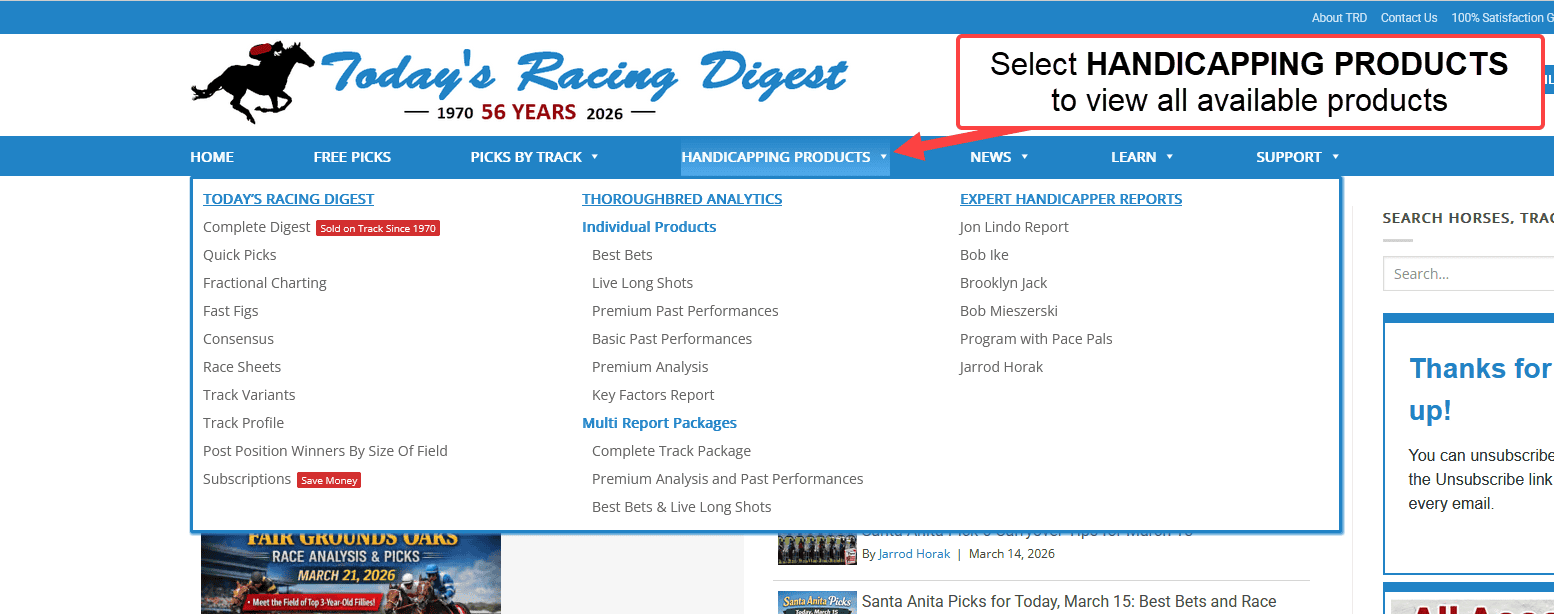
- Click Handicapping Products in the main menu.
- Select a product from the dropdown menu.
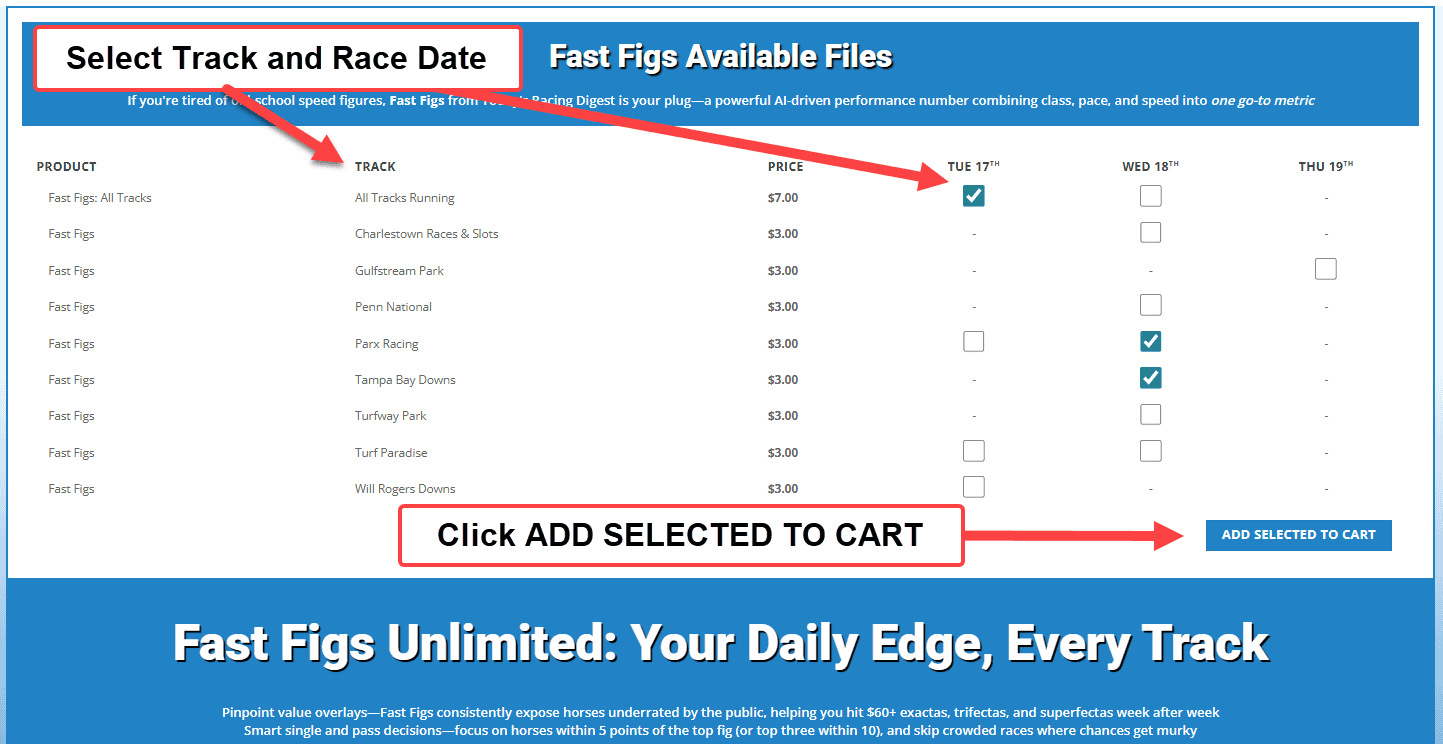
3. On that page, you can learn about the product or purchase it from the product grid at the top.
4. Select the date and click ADD SELECTED TO CART.
—
Step 2: Review Your Cart
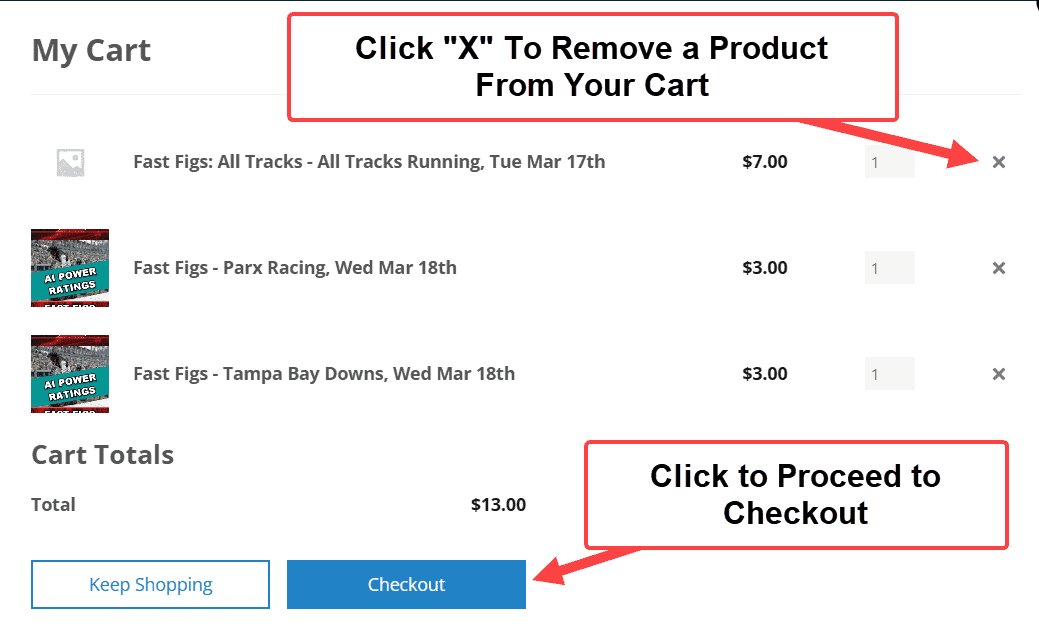
- After adding products, a cart will appear in the top right corner of the page.
- Click the cart icon to view your selected products.
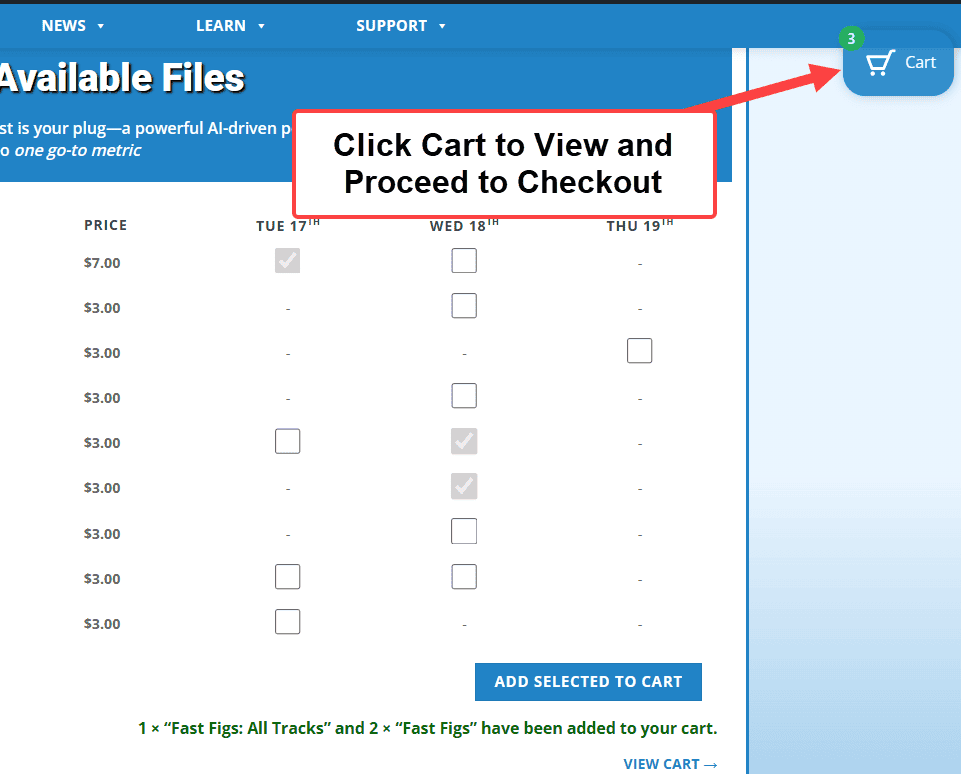
- Confirm that the track, product, and date are correct.
- Click the “X” next to the product to remove it from your cart.
—
Step 3: Checkout
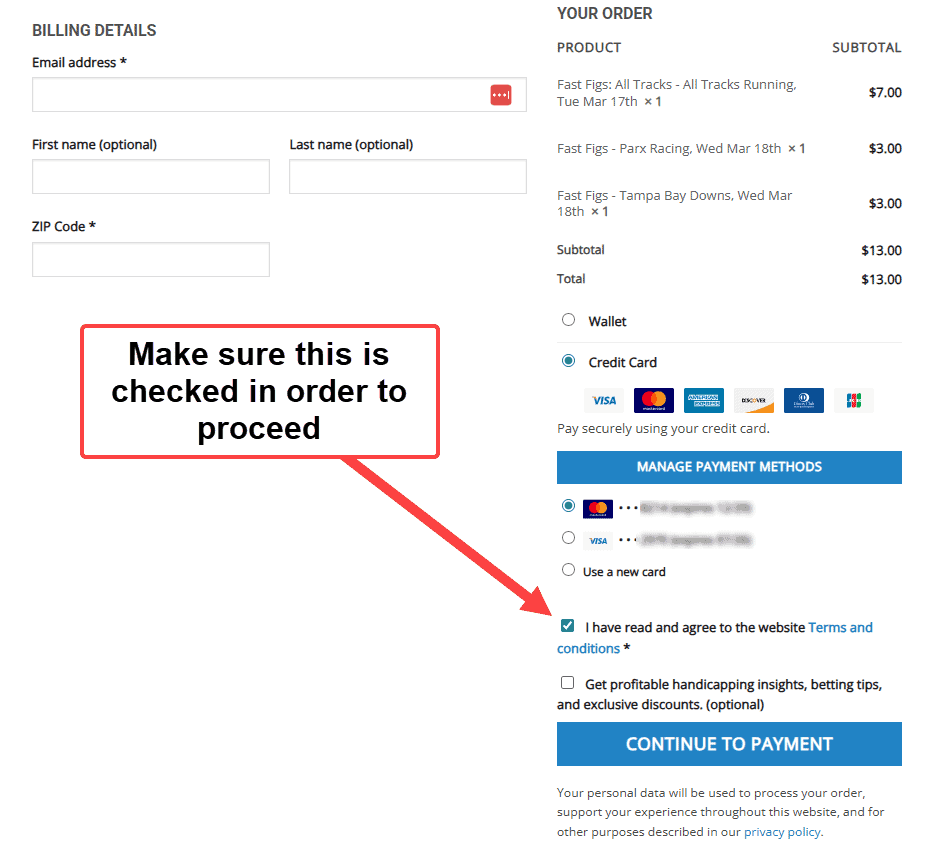
- Click Checkout.
- Enter your email address and zip code.
- Check the box to agree to the terms.
- Enter your credit card information.
- Click Place Order (or Checkout).
—
Step 4: Download Your Product
After your order is processed:
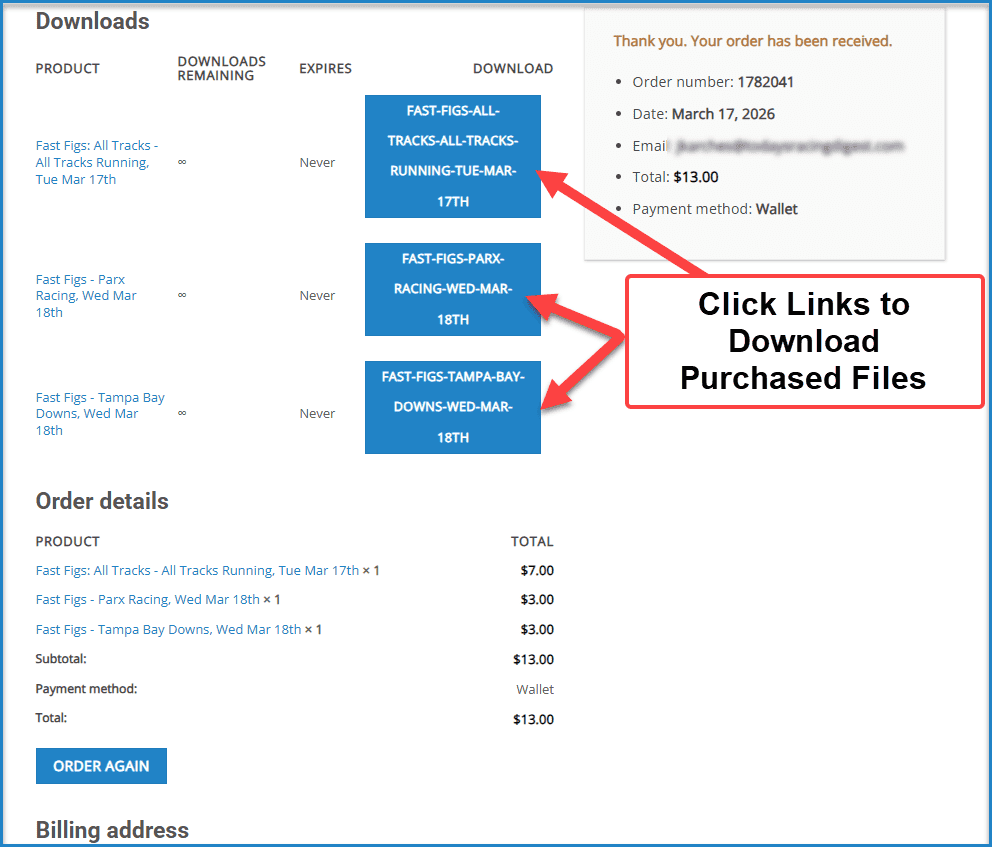
- You will be taken to a receipt (confirmation) page.
- On that page, you will see a link to your purchased product.
- Click the link to open and download your file.
You will also receive a receipt email with your order details.
To access your files later:
- If you created an account: go to My Account → Downloads.
- If you checked out as a guest: use the link in your email receipt.
You do not need to be highly technical — if you can browse the internet and check email, you can use the site.
If you need help at any step, contact support and we will assist you.
How to Access and Download Your Files
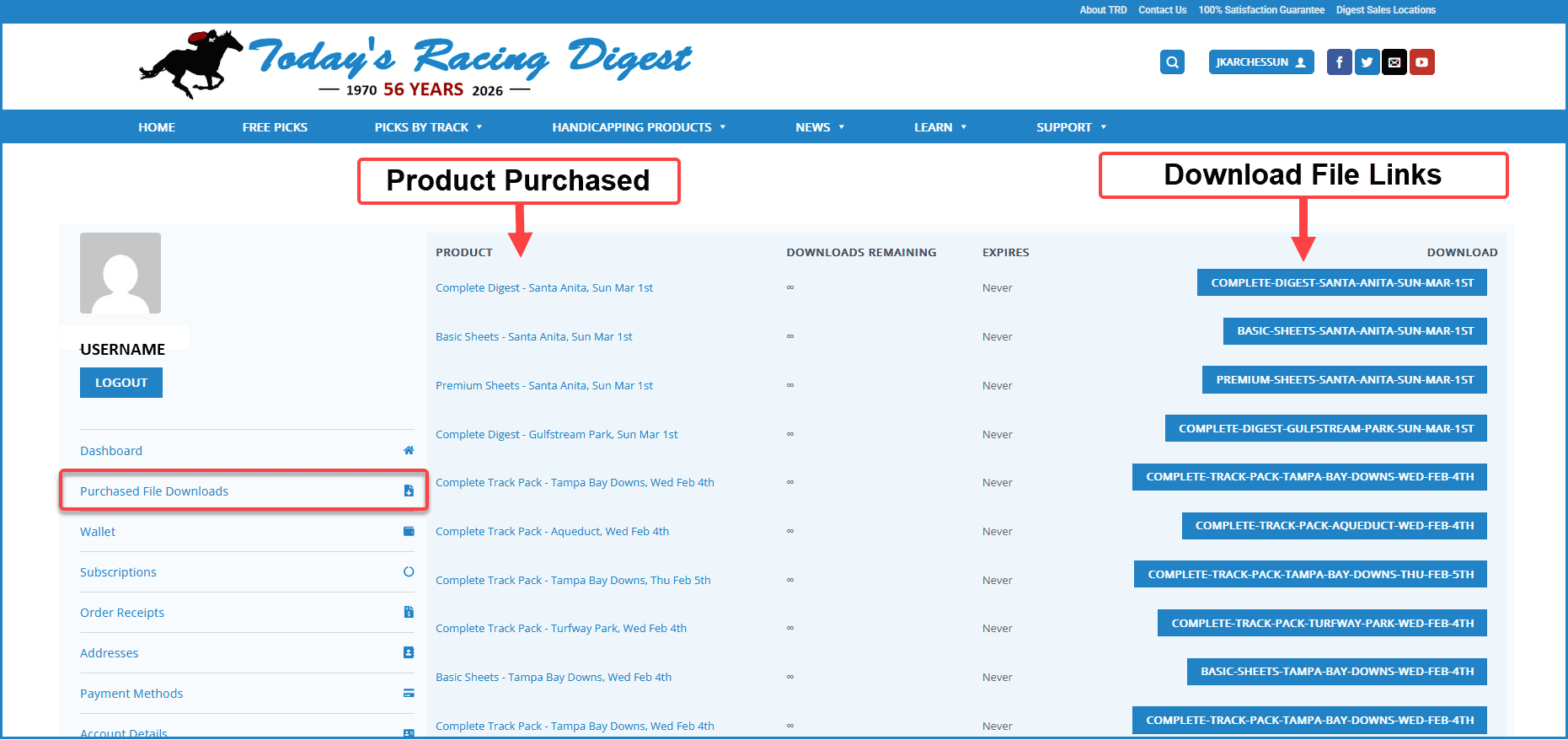
- Log into your account.
- Click My Account.
- Select Purchased File Downloads.
- Locate your product by race date.
- Click the product name to download the PDF.
You can download purchased files again at any time from this section.
If your file does not download:
- Check that pop-ups are not being blocked by your browser.
- Try refreshing the page and clicking again.
- Clear your browser cache and reload.
- Try a different browser or device.
If you checked out as a guest, use the download link provided on your order confirmation page or in your receipt email.
If you still cannot access your file, contact support and include your username and we will assist you.
If your download doesn’t look like what you expected, check these common issues first:
1. Check the track and race date.
Make sure the file matches the track and race date you purchased. With multiple tracks running on the same day, it’s easy to accidentally buy or download the wrong card.
2. Make sure you purchased the correct product.
Some customers accidentally purchase a Thoroughbred Analytics Complete Track Pack when they meant to buy the Today’s Racing Digest Complete Digest. These are completely different products, so the reports will look very different.
3. Make sure you didn’t download the free sample.
On many race days we offer a free feature giveaway covering the first four races. That file is only a sample and does not contain the full card or the full product.
4. Occasionally we may upload the wrong file.
We manually upload each file to the website every day, so once in a while a mistake can happen.
If you think the wrong file is posted, contact us and include:
- Product name
- Track
- Race date
We’ll send you the correct file and update the download on your receipt so you can download the corrected version.
No matter what the issue is, just let us know and we’ll take care of it. All products purchased from Today’s Racing Digest are backed by our 100% satisfaction guarantee.
How to View or Download Order Receipts
- Log into your account.
- Click My Account.
- Select Order Receipts.
- Click View next to any order.
From the order details page, you can review the products purchased, order date, and billing information.
If you need a copy of a receipt for accounting purposes, you can use this section to reference your order history.
If you see a message indicating that you already purchased a product, it means the order is already in our system.
To access your file:
- Log into your account.
- Go to My Account → Purchased File Downloads.
- Locate the product by race date and click to download.
If you checked out as a guest, search your email for the original receipt and use the download link provided there.
If you cannot locate the purchase, contact support and include the email address used at checkout so we can help locate your order.
If you completed checkout as a guest, your download link is provided on:
- The receipt (order confirmation) page immediately after checkout.
- The confirmation email sent to the address entered during checkout.
If you cannot locate the email:
- Check your spam or junk folder.
- Search your inbox for Today’s Racing Digest.
If you still cannot find your receipt, contact support and include:
- Your full name
- The email address used at checkout
- The track and race date purchased
We will locate your order and resend access if needed.
Subscriptions
When your subscription is active, any Today’s Racing Digest product included in your plan will automatically display as FREE or INCL on the product page.
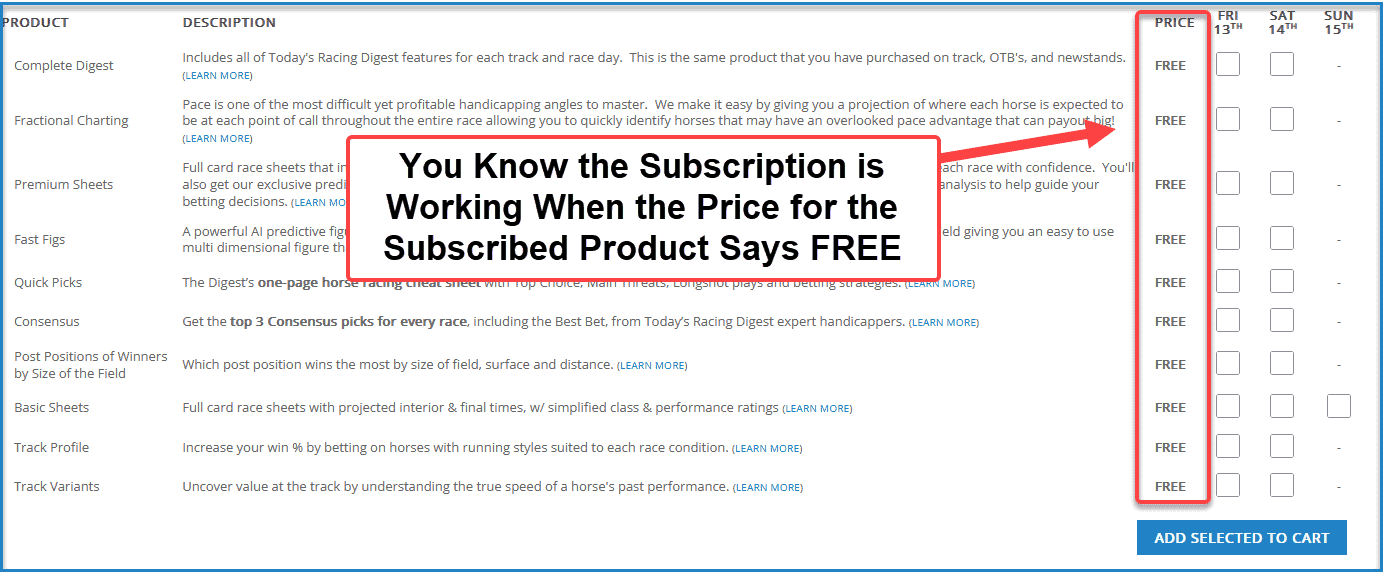
To use your subscription:
- Select the track and race date you want.
- Add the product to your cart.
- Proceed to checkout.
You will know your subscription is working correctly when the price of eligible products shows as $0 in your cart and remains $0 throughout the entire checkout process.
If a product included in your subscription does not show as $0, make sure you are logged into the correct account with an active subscription.
To manage your subscription, go to:
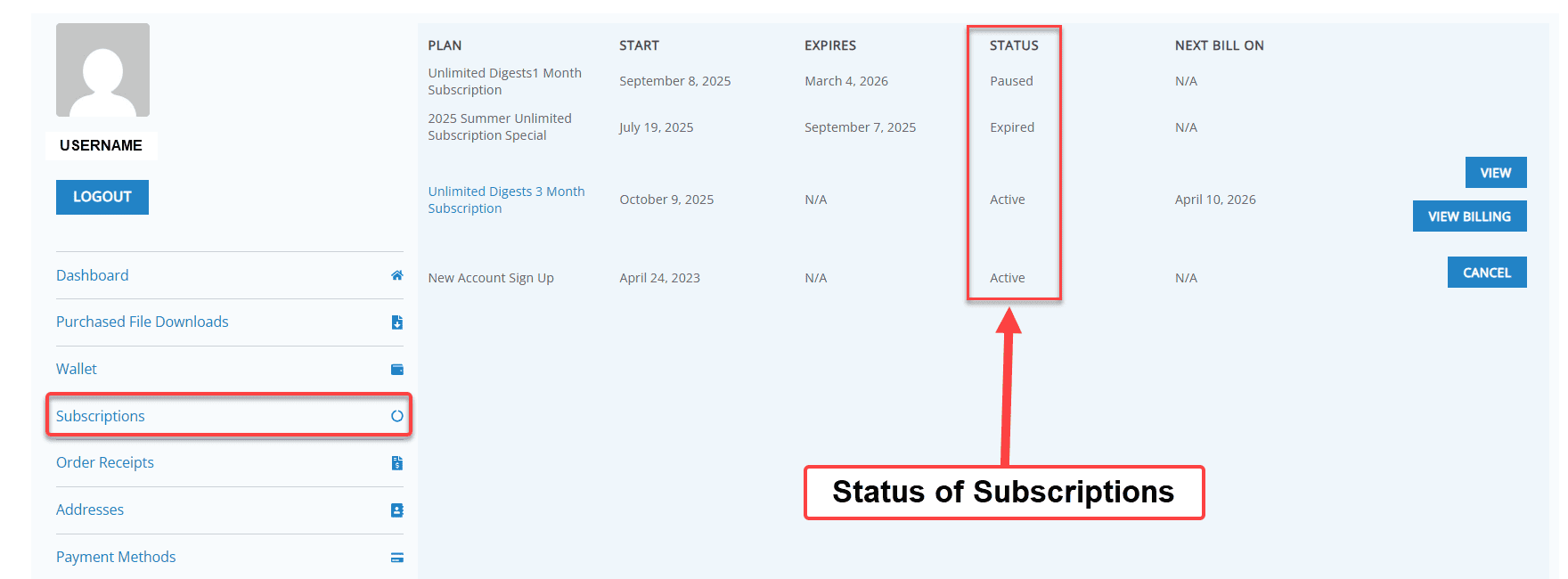
My Account → Subscriptions, where you can view status, billing dates, and make changes.
Subscriptions (if signed up)
Manage active subscriptions.
- Go to My Account.
- Select Subscriptions.
From this section, you can:
- See all subscription activity
- Cancel a subscription
- Review subscription status
- To manage a subscription click the “View Billing” blue link next to the subscription name.
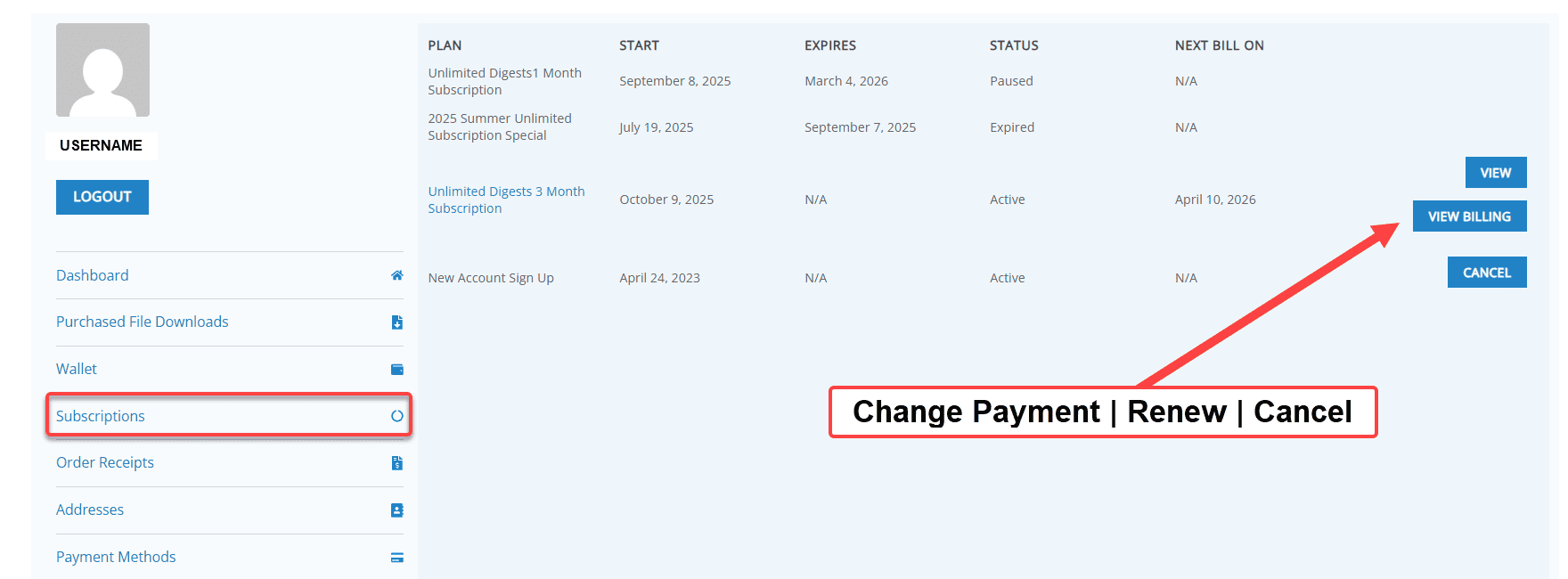
From this section, you can:
- View renewal dates
- Cancel auto-renew
- Review subscription status
- Change Payment
- Renew and Cancel a Subscription
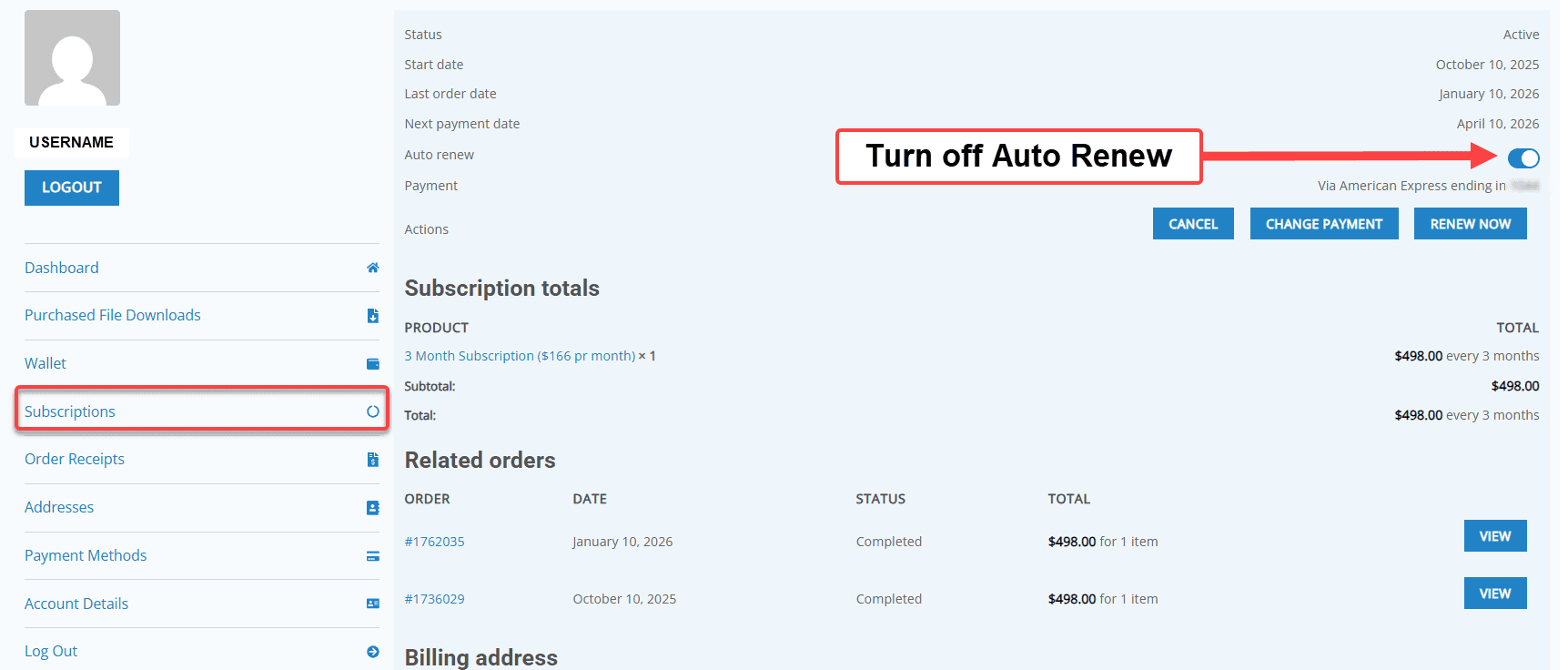
- Cancel your subscription (access continues until the end of your billing period)
- Turn off auto-renew without canceling immediately
- Pause your subscription if that option is available
- Update your payment method
- View past charges and billing history
If you have an active subscription, you can cancel auto-renew at any time from your account dashboard.
- Log into your account.
- Click My Account in the top menu.
- Select Subscriptions.
- Click View next to your active subscription which will take you to the page where you can cancel the auto-renew.
Click the Auto-Renew toggle button.
Confirm the cancellation.
What Happens After You Cancel?
- Your subscription will remain active until the end of your current billing period.
- You will not be charged again.
- Your membership access will continue through the paid period.
Important Notes
- Cancelling stops future renewals — it does not issue an automatic refund.
- If you cancel by mistake, you may be able to reactivate before expiration.
If You Do Not See a Cancel Auto Renew Toggle Button
- Your subscription may already be canceled.
- Your subscription may have expired.
- You may need to update a failed payment before managing the subscription.
If you cannot locate your subscription or the cancel option, contact support and include the email address associated with your account.
What Happens When You Cancel?
When you cancel a subscription, you are turning off future auto-renewal.
- Your subscription will remain active until the end of your current billing period.
- You will continue to have access to included products during that time.
- You will not be charged again after cancellation.
Canceling does not automatically issue a refund for the current billing period.
If you cancel by mistake, you may be able to reactivate your subscription before it expires.
What If My Renewal Payment Fails?
If a renewal payment fails, your subscription may enter a pending or on-hold status.
To resolve this:
- Log into your account.
- Go to My Account → Subscriptions.
- Open the affected subscription.
4. Update your payment method if necessary.
5. Retry the payment (if the option is available).
If payment is not successfully completed, your subscription access may pause until the issue is resolved.
If you need assistance, contact support and include the email address associated with your account.
How to Reactivate a Subscription
- Log into your account.
- Go to My Account → Subscriptions.
- Open your inactive or canceled subscription.
- Select Reactivate if available.
If reactivation is not available, you may need to purchase a new subscription through the subscription page. Some deeply discounted plans cannot be paused or canceled and later resumed at the same rate. To restart, you would need to sign up again at the current available price.
Billing & Payments
If you need to update the card associated with your account or subscription, follow these steps:
- Log into your account.
- Click My Account.
- Select Payment Methods or open your active Subscription.
- Add a new card or update your existing payment details.
- Save your changes.
Update your card from the Payment Methods Tab:
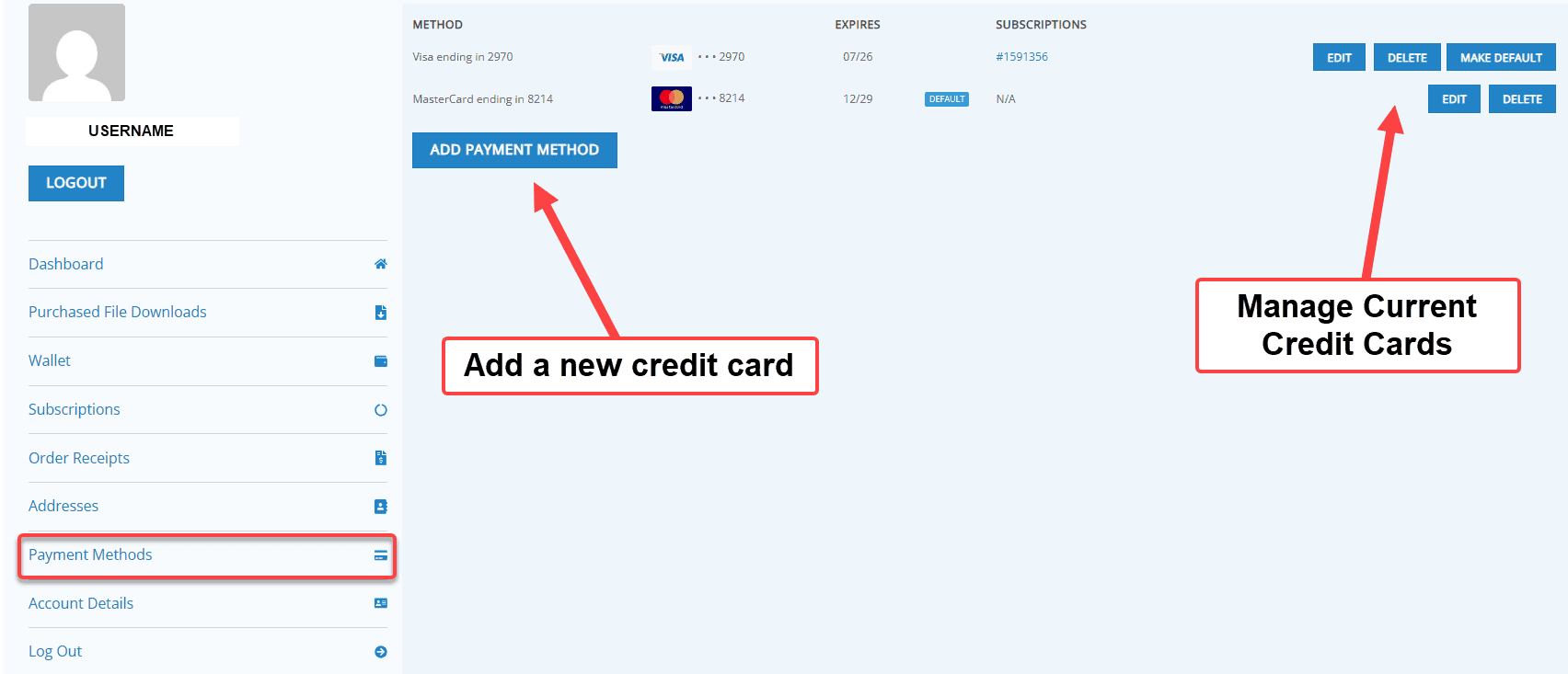
Update your card when it is associated with a subscription:
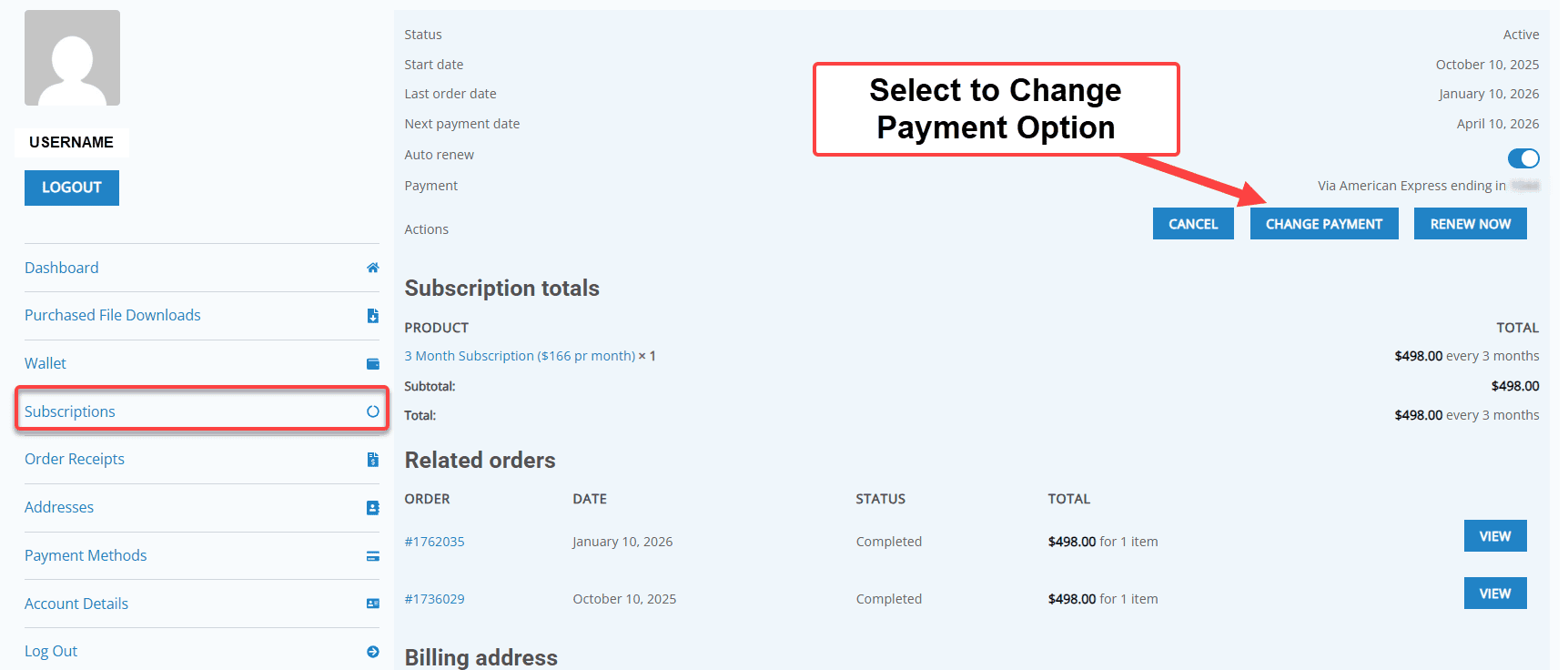
If your subscription is set to renew soon, make sure the updated payment method is properly saved before the renewal date.
If you experience issues updating your payment method, contact support for assistance.
If your card has expired or a renewal payment failed, your subscription may enter a pending or on-hold status.
To resolve the issue:
- Log into your account.
- Go to My Account → Subscriptions.
- Select “View Billing” to view the affected subscription.
4. Update your payment method if needed.
5. Retry the payment (if the option is available).
Once payment is successfully processed, your subscription access will resume normally.
If the payment is not resolved, access may pause until billing is updated.
If you have a billing question or need assistance with a charge, please contact us directly.
Email: [email protected]
When contacting support, please include:
- The email address associated with your account
- The order number (if available)
- A brief description of the issue
We will review your request and respond as quickly as possible.
Wallet Account
Your Wallet is store credit you can purchase and can be used to purchase products faster at checkout.
- Credits never expire.
- Wallet credits are fully refundable upon request
You can add funds to your Wallet from your account dashboard.
- Click My Account at the top of the website.
- Log in to your account.
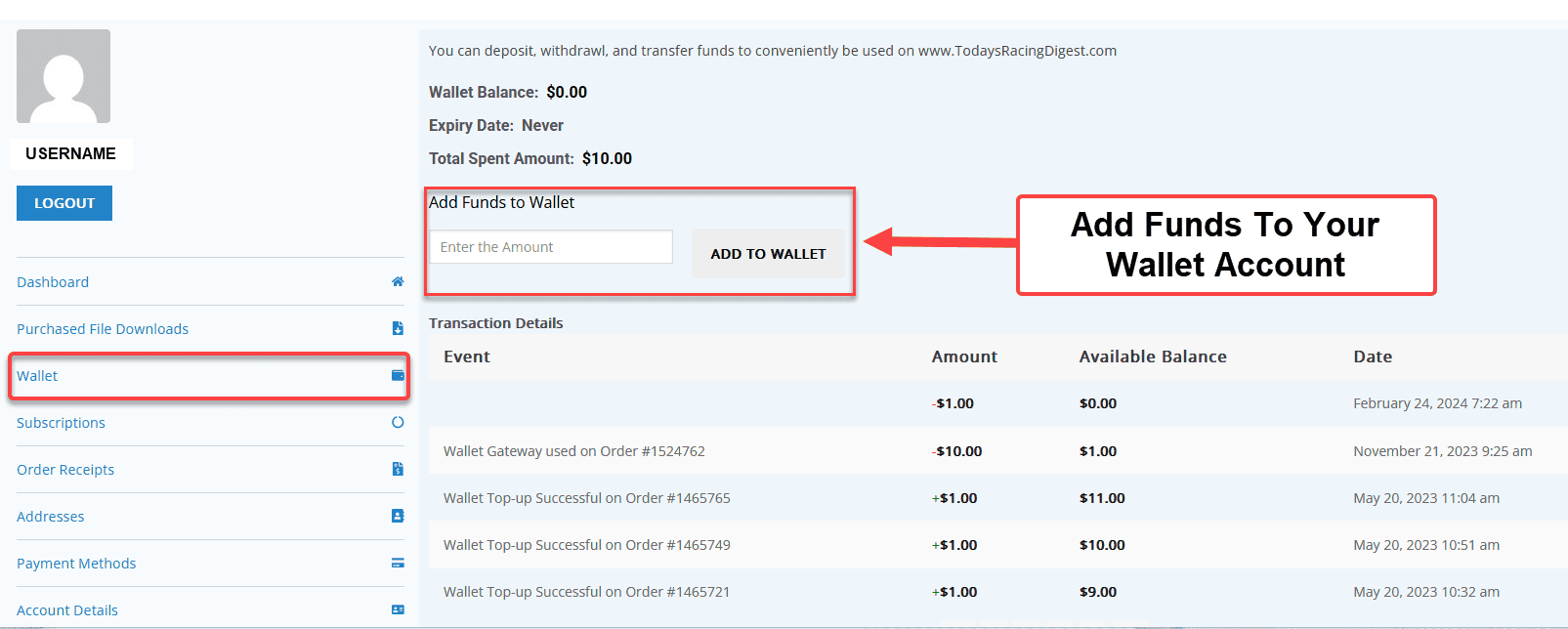
- Select Wallet.
- Enter the amount you want to add.
- Click Add to Wallet.
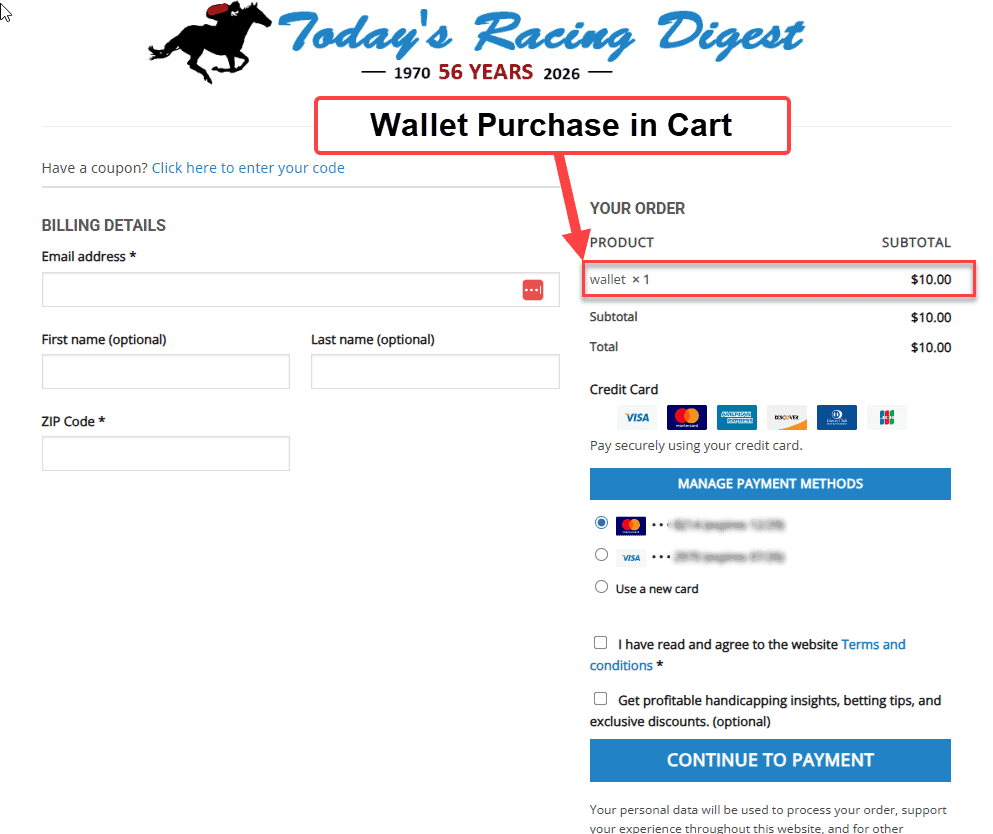
- You will be taken to checkout.
- Enter your email address and zip code if needed.
- Check the box to agree to the terms.
- Enter your payment information.
- Click Place Order (or Checkout) to complete the purchase.
Once your order is processed, the funds will be added to your Wallet balance.
You can return to your Wallet page at any time to view your current balance and transaction history.
You can check your Wallet balance from your account dashboard.
- Click My Account at the top of the website.
- Log in to your account.
- Select Wallet
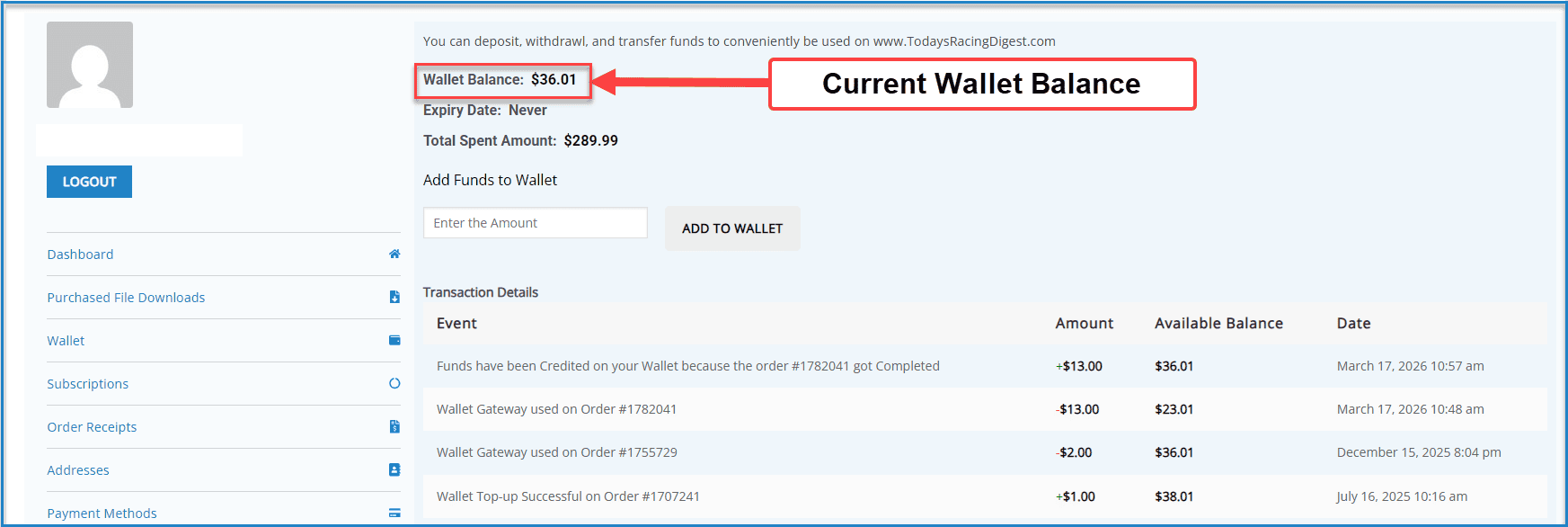
Your current balance and recent transactions will be displayed on that page.
If you have trouble accessing your Wallet, contact us for assistance.
No. Wallet credits never expire.
Yes. In many cases, refunds can be issued back to your Wallet as store credit.
If you’d like a refund, contact support with your order number and tell us whether you want the refund returned to your Wallet.
Wallet credits are fully refundable upon request to [email protected]
If your Wallet balance did not update right away, don’t worry — it is usually a display or timing issue.
Step 1: Refresh and Recheck
- Refresh the page.
- Go to My Account → Wallet and check your balance again.

Step 2: Confirm the Order Was Processd
- Go to My Account → Order Receipts.
- Make sure the order shows as Completed or Processing.
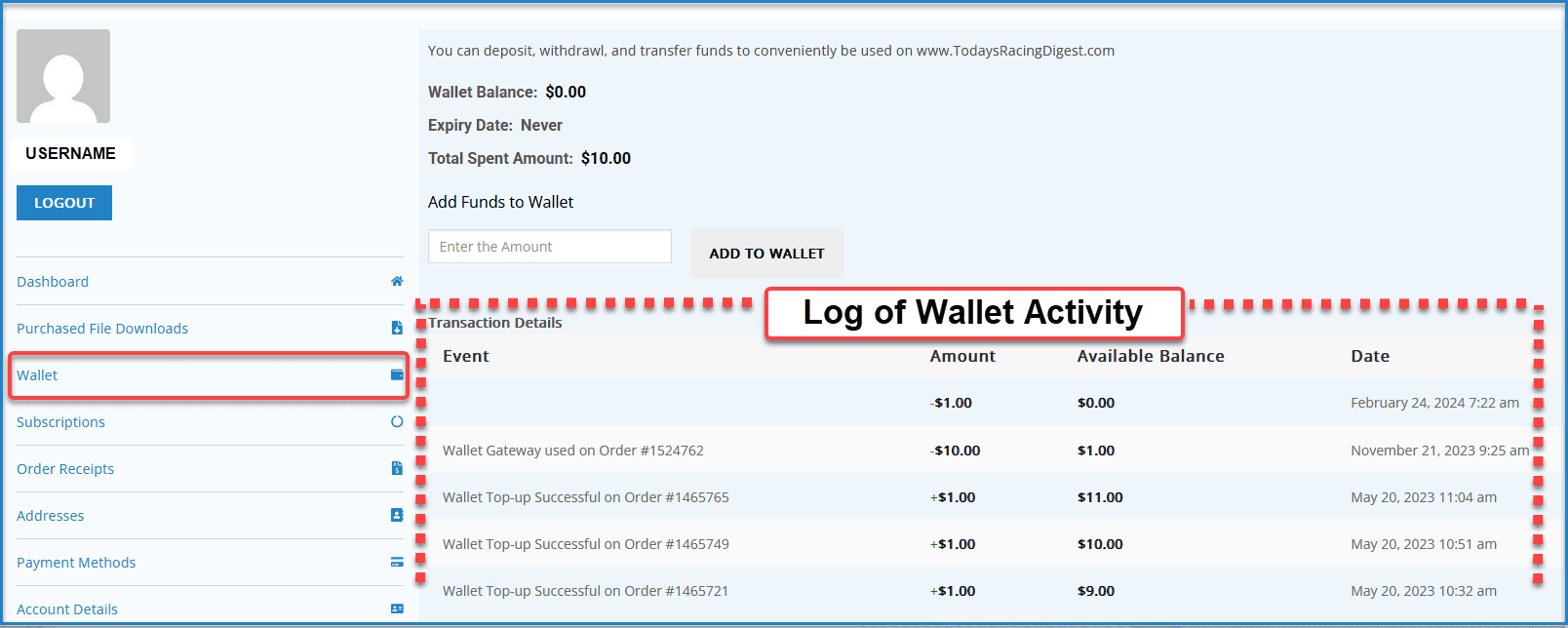
Step 3: Review Your Wallet Transaction History
- On your Wallet page, scroll to the transaction history section.
- Look for an entry showing the purchase amount deducted.
- This confirms your Wallet credits were applied correctly.
If the Balance Still Looks Incorrect
Contact support and include:
- Your account email
- Your order number
- A brief description of the issue
We will review your Wallet activity and resolve the issue if needed.
No. Wallet credits are tied to your account, so you must be logged in to use them.
Guest checkout is available for one-time purchases, but Wallet requires an account.
If your Wallet balance looks different than expected, you can review your full transaction history inside your account.
- Log into your account.
- Go to My Account.
- Open Wallet
- Review the transaction log, which shows deposits, purchases, and refunds.
This log reflects all wallet activity associated with your account.
If something still does not look correct, email us at [email protected] and include your name and the email address associated with your account. We will review your wallet history and investigate the issue.
We also maintain independent records of wallet adjustments in the event of technical issues or account access problems, so we can verify activity if needed.
Account Troubleshooting
If you requested a password reset but still cannot log in, follow these steps carefully. Most issues are caused by using the wrong email or an expired reset link.
Step 1: Make Sure You Are Using the Correct Email
- Your username is usually your email address.
- Try any email addresses you may have used when purchasing.
- Search your inbox for past receipts from Today’s Racing Digest to confirm the correct email.
Step 2: Check for the Reset Email
- Check your spam or junk folder.
- Wait a few minutes — the email may not arrive instantly.
Step 3: Use the Most Recent Reset Link
- Only use the latest reset email you received.
- If you request a new reset, older links will no longer work.
Step 4: Set and Enter Your New Password
- Create a password you can easily enter correctly.
- Copy and paste the password instead of typing it if possible.
Step 5: Try Logging In Again
- Return to the login page and enter your email and new password.
- If it doesn’t work, refresh the page and try again.
If You Are Still Having Trouble
Please contact us and include:
- The email address you believe is on your account
- Any other email addresses you may have used
Email: [email protected]
We will help locate your account and restore access.
Membership Page Won’t Load or Content Not Showing
If a membership or subscriber-only page is not loading or showing access, the most common cause is that your login session has expired.
This can happen automatically if the site is updated, caches are cleared, or your session times out — even if it looks like you are still logged in.
Step 1: Log Out and Log Back In
- Click My Account.
- Log out of your account.
- Log back in using your email and password.
This step resolves most access issues.
Step 2: Refresh the Page
- Refresh the page after logging back in.
Step 3: Try Basic Browser Fixes
- Clear your browser cache.
- Disable ad blockers or privacy extensions.
- Try a different browser.
Supported Browsers
For best performance, use the latest version of:
- Google Chrome
- Safari
- Microsoft Edge
Older or outdated browsers may prevent subscription content from loading properly.
If the Issue Continues
If you are still unable to access your membership content, contact support and include your account email and the page you are trying to access.
Please email [email protected] if:
- You cannot log in after attempting a password reset.
- Your membership access is not working despite an active subscription.
- Your wallet balance appears incorrect.
- You believe there is a billing error.
- You cannot locate a past order.
To help us resolve your issue quickly, include:
- The email address associated with your account
- The track and race date involved (if applicable)
- A brief description of the issue
We will review your request and respond as soon as possible.
If you are using a VPN, proxy service, or privacy tool, it may route your connection through another country, which can block access to the site.
How to Fix It
- Disable your VPN and refresh the page.
- Make sure your connection is not being routed through another country.
- If you are traveling outside the United States, access may be temporarily unavailable.
If you believe you are located in the United States and still cannot access the site or you do not live or are traveling outside of the United States and would like access to the site please contact [email protected] and include your IP address (if known) and a brief description of the issue.
For security reasons, the website may temporarily block access after multiple failed login attempts.
This is an automatic protection measure designed to prevent unauthorized access.
What You Can Do
- Wait and try again later (blocks are typically temporary).
- Use the Lost your password? link to reset your password instead of guessing.
- Make sure you are entering the correct email address (your username is usually your email).
If you are still unable to access your account, contact support or you can email us at [email protected] and include the email address associated with your account. We can review and assist if necessary.
For security reasons, login sessions may expire after a period of inactivity.
You may also be logged out if:
- Your browser blocks cookies.
- You are using private/incognito mode.
- A browser extension is interfering with login sessions.
What to Try:
- Enable cookies in your browser settings.
- Avoid using private/incognito mode for logged-in access.
- Disable aggressive privacy or security extensions.
- Clear your browser cache and log in again.
If you are still having trouble contact support and include your username and email address along with a brief description of the problem and we will get back to you as soon as possible.
If the site repeatedly asks you to log in, your session may not be saving correctly.
This is usually caused by:
- Blocked cookies
- Browser cache issues
- Privacy extensions
To resolve this:
- Enable cookies in your browser.
- Clear your browser cache.
- Disable ad blockers or privacy extensions for this site.
- Try using the latest version of Chrome, Safari, or Edge.
If you are still having trouble contact support and include your username and email address along with a brief description of the problem and we will get back to you as soon as possible.
The best and fastest way to reach us is by email or by using any of the contact us options located throughout the website.
We check email multiple times throughout the day and can usually respond more efficiently this way.
Email: [email protected]
To Help Us Assist You Faster
Please include the following in your message:
- Your account email (username)
- The track and race date (if applicable)
- A brief description of the issue
You are welcome to call us, but email is preferred as it allows us to review your account and respond more quickly while we are in production.
If your subscription shows as active but you cannot access products, the most common reason is being logged into the wrong account.
Step 1: Confirm You Are Logged Into the Correct Account
- Log out of your account.
- Log back in using the email address used to purchase the subscription.
- If you have multiple email addresses, try each one.
Step 2: Verify Your Subscription
- Go to your Subscriptions page.
- Confirm your subscription is listed as Active.
- If you do not see a subscription, you may be logged into the wrong account.
Step 3: Confirm the Product Is Included
- Make sure your subscription includes the track or product you are viewing.
Step 4: Refresh Your Session
- Log out and log back in again.
- Refresh the page.
If access still does not appear correctly, contact support and include:
- Your account email
- The track and race date you are trying to access
If you have an active subscription, eligible products should display as FREE or INCL.
If you are still seeing a price, check the following:
Step 1: Make Sure You Are Logged In
- Confirm you are logged into your account.
- If unsure, log out and log back in again.
Step 2: Verify Your Subscription
- Go to your Subscriptions page.
- Confirm your subscription is listed as Active.
- If no subscription appears, you may be logged into the wrong account.
Step 3: Confirm the Product Is Included
- Make sure your subscription includes the specific track or product you are viewing.
Step 4: Refresh the Page
- Refresh the page or clear your browser cache.
At checkout, eligible products should display as $0. If they do not, your subscription may not include that item.
If You Still Need Help
Please contact support and include:
- Your account email (username)
- The track and race date you are viewing
- A brief description of the issue
We will review your account and respond as quickly as possible.
Why Does My Subscription Show “On-Hold”?
A subscription typically shows On-Hold when a renewal payment has failed.
To resolve this:
- Log into your account.
- Go to My Account → Subscriptions.
- Open the affected subscription.
- Update your payment method if needed.
- Retry the payment (if available).
Once payment is successful, your subscription will return to Active status.
Why Can’t I See the Cancel Button?
If you do not see a cancel option, it may be because:
- Your subscription is already canceled.
- Your subscription has expired.
- Your subscription is currently on-hold due to payment issues.
Open My Account → Subscriptions and review the subscription status.
If you believe the cancel option should be available and it is not, contact support for assistance.
Our site restricts access to users located in the United States and Canada. You may be blocked if you are:
Traveling outside these countries
Using a VPN or proxy service
On a network that routes traffic internationally (hotel, public Wi-Fi, etc.)
Fix:
Turn off your VPN or switch to a U.S./Canada connection, then refresh the page.
If You Still Need Help
Please contact support and include:
- Your account email (username)
- A brief description of the issue
We will review your account, firewall logs and respond as quickly as possible.
Your connection may still appear as international.
Try the following:
Disable any VPN or proxy
Switch networks (Wi-Fi → mobile data)
Restart your router/device
If the issue continues, contact support with your account email and a screenshot of the block message so we can assist.
Have more questions?
Still have a question? We’re here to help.
Send us a message below and include your account email, track, and race date (if applicable) so we can respond quickly.
